When two people sit at one desk and each has a microphone, the question is how to record two microphones at once without one voice drowning the other. The short answer: plug both microphones into the same computer, tick both in the recorder, and keep a separate file for each voice as well as the mixed one. Cheap Recorder, a screen recorder that runs in Google Chrome on macOS, Windows and Linux, records one or more microphones, the screen, the webcam and the other side of a call into one MP4 saved to a folder on your own computer. The steps that follow work for an interview, a two-host podcast or a lesson with a student beside you.
Why a second microphone is worth the trouble
One microphone between two people almost always favours one of them. Whoever sits closer sounds full and present; the other sounds thin and far away, and turning up the volume later does not fix it, because raising the quiet voice also raises the room around it.
Two microphones solve the distance problem: each person speaks close to their own. A microphone is a transducer that turns sound into an electrical signal, and it hears whatever is nearest to it loudest. Put one in front of each mouth and each voice arrives strong and clear.
The second gain comes from keeping the voices apart. Studios have done this for decades: multitrack recording, developed in 1955, records several sound sources to separate tracks so each can be processed and mixed on its own. You want the same thing on a smaller scale: one file per voice, so a quiet speaker can be made louder or a cough can be cut without touching the other person.
What you need before you press record
- One microphone per person, both plugged into the same computer. Wired or USB microphones work best.
- No Bluetooth headset as a microphone. A Bluetooth headset drops into a low-quality mode when it is used as a microphone, so keep it for listening only.
- Headphones for anyone who can hear a remote voice, so no microphone picks up sound coming out of a speaker.
- A folder with room to spare. Separate files take more space than one MP4.
- Clearly different microphone names, if you can. The files are named after the microphones, and two with near-identical names are hard to tell apart later.
How to record two microphones at once in Chrome
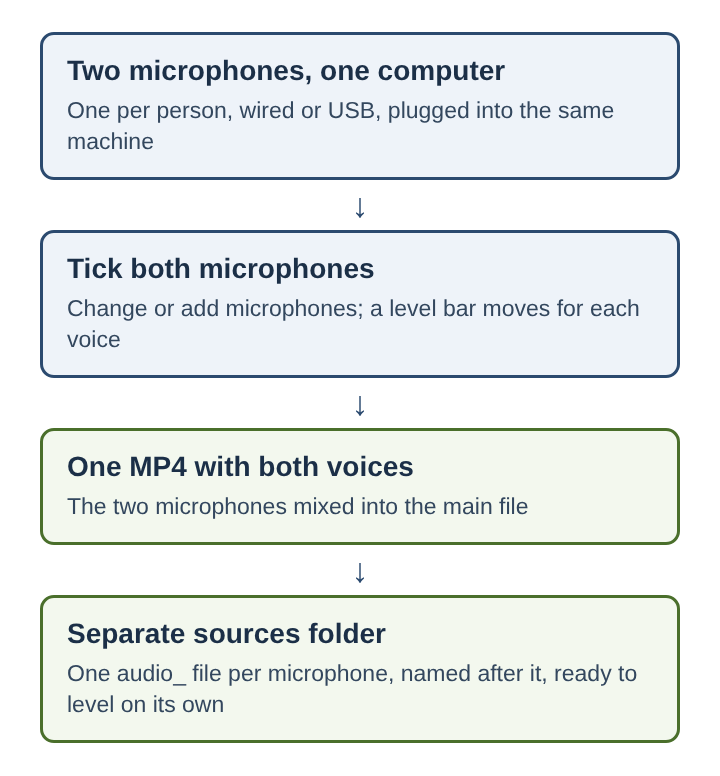
The recorder's Microphone tile has a list called Change or add microphones. Open it and tick every microphone you want in the recording. Each one shows "wired" or "bluetooth" beside its name, which is a quick way to catch a headset that has slipped in as a microphone. If one is missing, plug it in and press Rescan.
Next, open Options and tick Also save every source separately. Do this before the recording starts; it is what gives you a file per voice. You still get the usual MP4 with both voices mixed together, and next to it a folder called Separate sources holding one audio file per microphone, each named after its microphone and starting with audio_.
One more setting matters. Record the microphone untouched, also under Options, turns off the echo, noise and volume correction. Tick it for good microphones in a quiet room. Leave it unticked for laptop microphones or a noisy room, where that correction helps.
Keeping the two voices apart in one room
Two microphones in one room hear each other. Each file holds what that microphone picked up, so the other person will be faintly audible on your track. That faint spill is normal; the aim is to keep it well below each person's own voice.
Three habits do most of the work:
- Sit a little apart, rather than shoulder to shoulder.
- Speak close to your own microphone, at the same distance every time.
- Point each microphone at its own speaker and away from the other person.
While the recording runs, a level bar next to each microphone moves with its sound. Watch both bars for a few seconds at the start: each one should jump when its own person speaks and stay low when the other does. If one bar barely moves, that microphone is too far away or set too quietly.
If a third person takes part from a call as well, the call's sound comes in through the Call audio tile with Share tab audio ticked, and it is saved as one more file in the Separate sources folder. Everyone at the desk then wears headphones, so the remote voice never reaches the two microphones. Remote guests get a fuller treatment in recording a podcast with separate tracks, and voices that come back twice in stopping an echo on a call recording.
A worked example: a two-host podcast at one desk
Picture two hosts recording a weekly podcast at one desk. The first host has a USB microphone; the second has a wired one, plugged into the same computer a few minutes later. Here is the routine, step by step.
- The first host opens the recorder in Chrome, chooses the folder to save into, and opens Options. They tick Also save every source separately and, since the room is quiet and both microphones are decent, Record the microphone untouched.
- In the Microphone tile, they open Change or add microphones and tick both. The second microphone was plugged in late and does not show at first, so they press Rescan. Both now say "wired".
- The podcast is sound only, so they switch the webcam off and pick no screen. With the webcam off and no screen picked, the recording is an M4A sound file.
- They make a thirty-second trial run first: each host says their name, they stop, and they open the folder to check there is one
audio_file per person. - For the real episode, they press start, and one of them claps once, sharply, straight away.
- Each time they move to a new segment, they press M to add a marker. At the end they press Stop and finish, and every file is already in the folder.
In their audio editor they open both audio_ files, line up the clap on each track, and from then on the two voices stay together. The second host's voice is a little quiet, so they raise only that track. A loud cough from the first host in minute twelve is cut from that one track, and the answer underneath it on the other track survives.
Lining the files up with one clap
The recorder opens the sources one after another when you press start, so the separate files can begin a fraction of a second apart. That gap is too small to notice in one file on its own, but enough to make two voices sound slightly doubled when you lay the files on top of each other.
The fix is old. A clapperboard is used in film and video production to help synchronize picture and sound, and a sharp hand clap does the same job for audio files. The clap makes a tall, narrow spike on every track. Slide the tracks until the spikes sit on the same moment, and the rest of the recording lines up with them.
If a microphone drops out partway through, a message names it, its file stops at that point and the other microphone carries on. The mixed MP4 and the other file still hold the session, so a loose cable costs one track for a stretch, not the whole recording.
Frequently asked questions
Can two USB microphones be recorded on one computer at the same time?
Yes. Plug both into the same computer, tick both under Change or add microphones, and each gets its own level bar while recording. With Also save every source separately ticked, each also gets its own file.
Why does the other person's voice show up faintly on your track?
Microphones in one room hear each other, so each file holds a little of the other voice. Sitting apart and speaking close to your own microphone keeps that spill low.
Can a Bluetooth headset be one of the two microphones?
It can be picked, but a Bluetooth headset drops into a low-quality mode when used as a microphone. Use it for listening and a wired or USB microphone for the voice.
Why do the two files need lining up?
The sources open one after another, so the files can start a fraction of a second apart. A single sharp clap at the start gives every track the same spike to line up on.
Two microphones, two clean voices
Recording two microphones at once comes down to a few choices made before the first word: one microphone per person, both on the same computer, a separate file for each voice, and headphones for anyone who can hear a speaker. During the session, the level bars show that each microphone is hearing its own person. Afterwards, one clap lines the files up, and each voice can be raised, trimmed or cleaned without disturbing the other. Two voices, each clear and each in its own file, is what a good two-microphone recording comes down to.