If you want to know how to record a podcast with separate tracks, a browser can do it without extra software. Cheap Recorder is a screen recorder that runs in Google Chrome. It saves the screen, microphones, the webcam and the other side of a call into one MP4 in a folder on your own computer, with a live transcript. One option also writes each voice to a file of its own, which is the part a podcast editor cares about. It has to be switched on before the recording starts.
How to record a podcast with separate tracks in the browser
The short version has three parts. Pick a folder to save into. Tick the option that saves every source separately. Share the call tab with its sound so the guest is captured as a source of their own.
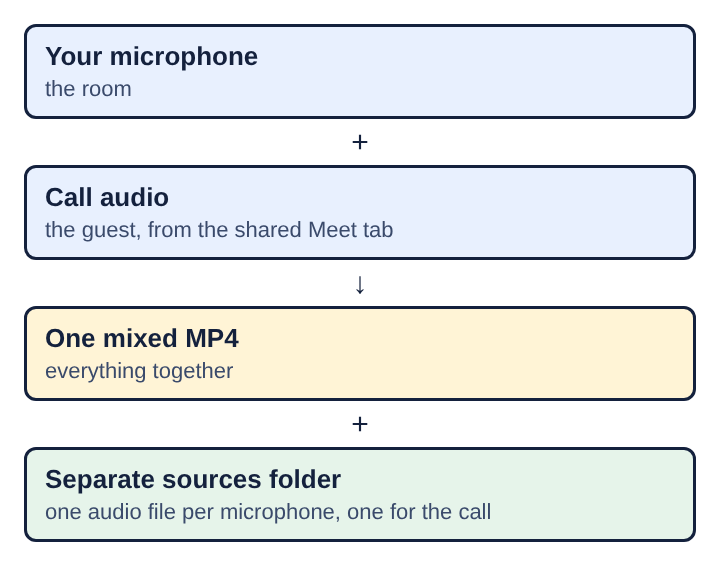
Take a worked example. You host an interview and your guest speaks to you over Google Meet. You use a microphone in the room, and the guest's voice comes out of the Meet tab in Chrome. That gives two sources: your microphone and the call audio. If you record them as one mixed file, they stay mixed. If you record them separately, you get one file per voice to edit with.
Why separate tracks matter when editing a podcast
A podcast is mostly spoken word, and spoken word has small problems. Your guest coughs while you are mid-sentence. One voice is louder than the other. A keyboard clicks on one side of the call only. In a single mixed file, each of these is fixed to everything else that was said at that moment.
The idea behind multitrack recording is to keep each source apart so it can be handled alone. With one file per voice you can:
- lower the guest without changing your own level,
- cut a cough from one voice while the other voice keeps going,
- clean noise from one microphone and leave the other alone,
- move a voice slightly in time if the two sides drift.
You still get the normal MP4 with everything mixed. The separate files are extra, and they are there for the editing stage.
What a browser recorder captures: screen, webcam and both sides of a call
The recorder works in Chrome on macOS, Windows and Linux with nothing to install. On a phone it is an Android app. It records the screen, one or more microphones, the webcam and the other side of a call, whether that is Google Meet, Microsoft Teams or any call running in a Chrome tab.
For what to capture, you choose from the whole screen, a window, a browser tab or the webcam only. A switch turns the webcam on or off. This matters for audio shows. With the webcam off and no screen picked, the recording is an M4A sound file, not a video. That is a natural fit for a show that only needs sound.
Setting up a podcast recording in Chrome
Setup takes about a minute, and it is done before the call starts. Chrome hands a page another tab's sound only when that tab is shared with its tab-audio option ticked.
- Pick the folder. Recordings go straight to a folder you choose on your own computer. The file is written every second while you record, one MP4 per recording, and it is not uploaded.
- Choose what to capture. Turn the webcam on for a video podcast, or leave it off with no screen picked for an M4A audio file.
- Open Options and tick Also save every source separately. Do this before the recording starts.
- Set up the Call audio tile. Pick the call tab, choose the Meet or Teams tab, tick Share tab audio and press Share. Some versions of Chrome word the box as Also share tab audio.
- Tell everyone on the call. The law on recording calls differs from place to place, so say it out loud before you start.
- Put on headphones. More on why in the next section.
While the recording runs, press M or Add marker to mark a moment you want to find again, such as a story you will want to trim. Stop and finish ends it. The recording then shows on the page with a player, and the file is already in your folder.
Keeping the host microphone and the remote guest apart
When the separate option is on, each source is saved as a file of its own in a Separate sources folder inside the recording's folder. Each microphone gets its own file, and the other side of the call gets its own. If you and a co-host sit at different microphones in the same room, those are two separate files as well.
Two habits keep the tracks clean.
Wear headphones
If the guest's voice comes out of your speakers, your microphone hears it and records it again. The guest then ends up faintly inside your track, which defeats the purpose of separating them. Headphones stop the voice from leaving the speakers and going back into the microphone.
Share the call's sound once
If you film the Meet tab as your screen with the tab's sound ticked, and also bring it in through the Call audio tile, the other voices go into the file twice. Use the Call audio tile for the guest. If you film the Meet tab as the picture, leave its sound unticked there.
The Call audio tile keeps only the sound of the tab you shared. It mixes that sound into the main recording with your microphone, while the separate copy stays as its own file.
Getting a transcript of the podcast recording
The recorder can show a live transcript while you record, in one of 25 languages. Captions can be saved as an SRT file, which is a plain text format of numbered, timed lines. That file is useful for show notes, for finding a quote, or for subtitles on a video version of the episode.
One detail matters if your guests are privacy minded. While the transcript is on, Chrome sends the microphone audio to Google to turn it into text. Recordings are otherwise not uploaded. A file leaves your computer only if you use Convert, which sends it to a server to change its format and deletes it once done, or if you use an AI button, which sends the transcript.
Markers and the transcript work well together. Press M when a moment needs attention, then use the transcript to find the same place when you edit.
Fixing missing guest audio when recording a podcast with separate tracks
The most common problem is a recording where you can hear yourself but not the guest. The cause is almost always the sharing step. Chrome gives a web page the sound of another tab only when that tab was shared with its tab-audio option ticked. If you shared a window or the whole screen instead, or left the box unticked, the Call audio tile reports that the tab had no audio.
The fix is to go back to the tile and repeat the steps: pick the call tab, choose the Meet or Teams tab itself, tick Share tab audio and press Share. Do it before the guest arrives so you can see the tile confirm it. The reasons screen recordings go silent are covered in more detail in why a screen recording has no sound in the browser.
If the guest is missing from the separate files too, the same cause applies, because the call audio is the source that failed to capture.
Frequently asked questions
Can a podcast be recorded with video as well as audio?
Yes. Turn the webcam switch on and the recording is an MP4 with your video. You can also capture the screen, a window or a browser tab alongside it.
Does recording a podcast in the browser need an install?
Not in Chrome on macOS, Windows or Linux. On a phone, the recorder is an Android app.
Why does the guest sound missing from a recording?
Chrome passes a tab's sound to a page only when the tab is shared with its tab-audio option ticked. If a window or the whole screen was shared, or the box was left unticked, the call tab gives no sound.
How is a podcast saved as separate tracks in Chrome?
Tick Also save every source separately under Options before the recording starts. Each microphone and the other side of the call are then saved as their own files in a Separate sources folder inside the recording's folder.