If you want to know how to record your screen and webcam at the same time, the short answer is that one recorder has to take in several sources at once: what is on the display, your face, your voice and, on a call, the voices of everyone else. Doing that in separate tools means lining up files afterwards. Doing it in one place gives you a single file.
A recorder that does this inside the browser is Cheap Recorder. It runs in Google Chrome and records the screen, microphones, the webcam and the other side of a call into one MP4 file, saved to a folder on your own computer, with a live transcript. Setting it up comes down to a few choices about sources, and each one changes what ends up in the file.
What recording the screen and webcam at the same time involves
A screen and webcam recording is made of several streams that have to end up in one timeline. The screen is one stream. The webcam is another. Each microphone is a third, and on a video call the sound of the other participants is a fourth.
Each stream comes from a different place. The screen and the call sound come from what the browser is allowed to share. The webcam and microphone come from your hardware. If any one is missing or muted, the finished file has a gap that you cannot fix afterwards.
That is why it helps to decide before you press record what the recording is for. A tutorial needs your screen, your voice and maybe your face. A recorded meeting needs your screen, your voice and the other people's voices. A talking-head message needs only the webcam. The sources you switch on follow from that.
Why a browser recorder suits screen and webcam capture
Chrome already knows how to share a screen, a window or a tab, and how to open a camera and a microphone. A recorder that runs in the browser asks Chrome for those sources and writes what it receives to a file. There is nothing to install, and it works on macOS, Windows and Linux. On a phone, the same recorder is an Android app.
Where the file goes matters too. Recordings are written straight to a folder you pick on your own computer, every second while you record, as one MP4 per recording. They are not uploaded. Because the file is written as you go, it is already in the folder when you stop. Two optional actions do send something away: Convert sends a file to a server to change its format and deletes it once done, and an AI button sends the transcript.
How to record your screen and webcam at the same time in Chrome
Here is a worked example. You are a tutor and want a lesson that shows your slides, your face and your voice. The steps in Cheap Recorder run like this:
- Open the recorder in Chrome and pick the folder where recordings should be saved.
- Choose what to capture: the whole screen, a window or a browser tab.
- Switch the webcam on. The switch turns it on or off, so you can decide per recording.
- Check your microphone. If you have more than one, you can record more than one.
- Start the recording and teach as normal.
- During the lesson, press
Mor use Add marker when something happens that you want to find again, such as the moment a student asks a question. - Press Stop and finish. The recording shows on the page with a player, and the MP4 is already in your folder.
The result is one MP4 with the screen, the webcam and your voice together. You can play it straight from the page or open it from the folder.
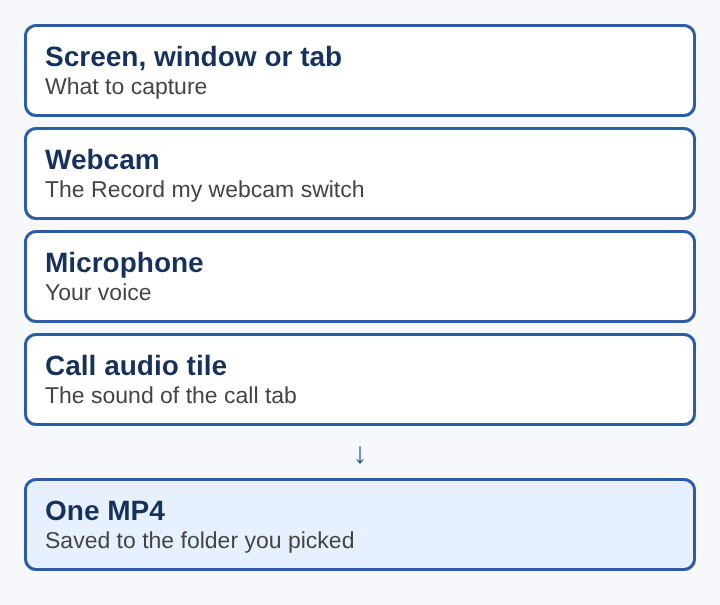
Choosing which screen, window or tab to capture
The choice of what to capture decides what viewers see, and it also decides what else gets recorded by accident.
- Whole screen records the whole display, so any window you open is in the file. Use it when you move between several programs.
- A window records one program only. Other windows stay out of the file, which keeps a demo tidy.
- A browser tab records one tab. It is the cleanest choice for a web page, and it matters for calls, as the next section explains.
- Webcam only records just your camera, for a spoken message with no screen.
There is one more case. If the webcam is switched off and you pick no screen at all, the recording is an M4A sound file, a sound file with no picture instead of an MP4. That is useful for audio-only work, but it is a surprise if you expected video.
For a lesson with private notes open in other windows, a window or a tab keeps them out of the file. For a walkthrough that moves between programs, the whole screen saves you from sharing again.
Capturing both sides of a video call
Your own microphone gives you your side of a call. The other side is harder, because those voices play from a browser tab, not from your hardware. The recorder handles this with its Call audio tile:
- Press Pick the call tab.
- Choose the Google Meet or Microsoft Teams tab, or any call open in a Chrome tab.
- Tick Share tab audio. Some versions of Chrome word it as Also share tab audio.
- Press Share.
The recorder then keeps only the sound of that tab and mixes it into the recording with your microphone. The reason for the tick box is how Chrome works: it hands a web page the sound of another tab only when that tab is shared with its tab-audio option ticked. If you shared a window or the whole screen, or left the box unticked, the Call audio tile reports that the tab had no audio. Setting this up takes about a minute, so do it before the call starts, not while people are already talking.
One detail causes doubled voices. If you also film the Meet tab as your screen source and tick its sound there, the other voices go into the file twice. Tick the tab's sound in Call audio only. Wear headphones too, so the other voices do not come out of your speakers and back into your microphone, a loop known as audio feedback.
If you want to edit each voice on its own, tick Also save every source separately under Options before the recording starts. Each microphone and the other side of the call are then saved as files of their own in a Separate sources folder inside the recording's folder. The article on recording a podcast with separate tracks in the browser goes into that setting in more depth.
Tell everyone on the call before you record. The law on recording calls differs from place to place, and people should know it is happening.
Getting a transcript from the recording
The recorder can write a live transcript while you record. It works in one of 25 languages, and the captions can be saved as an SRT file. An SRT file, in the SubRip format, is a human-readable text file that holds the captions in order with their timings, and it is widely supported.
There is one thing to know before you switch it on. While the transcript is running, Chrome sends the microphone audio to Google to turn it into text. If you are recording something private, decide first whether that is acceptable. If it is not, leave the transcript off.
Markers help here too: after a long session, they tell you which moments you flagged while it ran.
Common problems with screen and webcam recordings
The recording has no sound from the call
This is nearly always the tab-audio box. Share the call tab again from the Call audio tile and make sure the sound option is ticked. The full story is in the article on why a screen recording has no sound in the browser.
The other voices are doubled
The tab's sound was ticked twice: once when filming the Meet tab and once in Call audio. Keep it in Call audio only.
There is an echo
The other voices are coming out of your speakers and into your microphone. Put on headphones.
The file is audio only
With the webcam off and no screen picked, the result is an M4A sound file. Switch the webcam on or pick a screen, window or tab before you start.
The wrong things are visible
Whole screen shows everything. If notes or messages are open elsewhere, record a window or a tab instead, and close what you do not want seen.
Frequently asked questions
Can the screen and webcam be recorded into one file?
Yes. A browser recorder can take the screen, the webcam and one or more microphones and write them into a single MP4. The webcam is switched on or off per recording.
Is software needed to record the screen and webcam?
Not when the recorder runs in Google Chrome. It works on macOS, Windows and Linux with nothing to install, and phones can use an Android app.
How is the other side of a Google Meet call recorded?
Share the Meet tab and tick the tab-audio option, which Chrome words as Share tab audio or Also share tab audio. Chrome then passes that tab's sound to the recorder, which mixes it with the microphone.
Does a live transcript need an upload?
The recording itself is not uploaded. The transcript does involve Google, because Chrome sends the microphone audio there to turn it into text while the transcript is on.
Is permission needed to record a call?
The law on recording calls differs from place to place. Tell everyone on the call before recording starts.
Screen and webcam recording in the browser
Recording the screen and webcam together comes down to three choices made before you press record: which screen, window or tab to capture, whether the webcam is on, and whether the other side of a call needs to be in the file. Make those choices first, check that the tab-audio box is ticked if a call is involved, and the finished MP4 will hold everything you meant to keep.