Why does a screen recording have no sound? Almost always because the picture and the sound are captured as two separate things, and only the picture was asked for. A screen recording, sometimes called a screencast, is a digital recording of what a computer screen shows, often with audio narration, and the sound is a separate part that has to be asked for. In a browser, that means each sound source needs its own permission or its own tick box.
A recorder such as Cheap Recorder runs in Google Chrome and puts the screen, microphones, the webcam and the other side of a call into one MP4, saved in a folder on your own computer. The same silent-file problem can happen in any browser recorder, so the same checks apply to the subject in general.
Why does a screen recording have no sound?
Picking a screen to record does not pick any audio. The video of a window and the voice in your headset travel through different paths, and the browser treats them as different requests. If one request is missing, the file plays with the picture and nothing else.
Four causes cover most silent recordings:
- No microphone was selected, or Chrome blocked access to it.
- The tab sound box was left unticked when the share was confirmed.
- A window or the whole screen was shared when the sound lived in a browser tab.
- The wrong input device was chosen, so the microphone was recording silence.
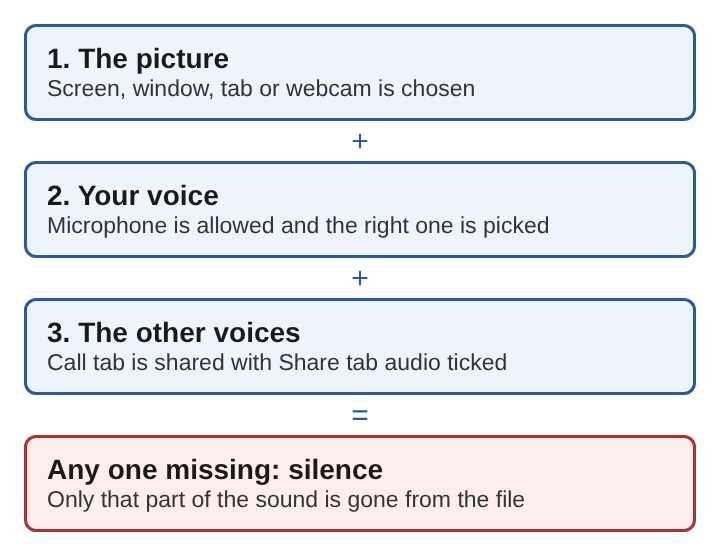
Each one has a clear fix, and each one is easiest to catch before the recording starts.
How browser screen capture handles audio
When a web page asks to record, the browser opens a sharing window and the page receives only what you chose in it. Sound from another tab is handed over only when that tab is shared with its tab-audio option ticked. Without the tick, the page gets the picture and no sound from that tab.
The microphone is a separate request. Chrome asks whether the page may use it, and a recording made without that permission has no voice in it, even though the screen part worked.
This split explains the most confusing case: you can hear everything on your screen while recording, and the file still comes out silent. What you hear is not what the page was given.
Share tab audio when recording a call or a video
The tab audio option is where most missing sound is lost. In a recorder with a Call audio tile, the steps are short:
- Press the Call audio tile and pick the call tab.
- Choose the Meet or Teams tab in Chrome's picker.
- Tick Share tab audio. Some versions of Chrome word it as Also share tab audio.
- Press Share.
The recording then keeps only the sound of that tab and mixes it with your microphone. It keeps the sound of that tab, not its picture.
If you shared a window or the whole screen instead of the tab, or you left the box unticked, Chrome gives the page no tab sound. A recorder with a Call audio tile reports this: the tile says that the tab had no audio. Take that message at face value and share the tab again with the box ticked.
Do this before the call starts. Setting it up takes about a minute, and it is much harder to do while people are already talking.
Microphone permission and input selection
If your own voice is missing, start with the microphone. Chrome asks whether the page may use it, and a recording made without that permission has no voice in it, even though the screen part worked.
Then check the input device. The Microphone tile names the microphone it will record, and Change or add microphones lets you tick a different one. Pick the one you actually speak into, and speak for a few seconds to see whether the transcript reacts.
There is one more case. With the webcam switched off and no screen picked, a recording has nothing to film, so it is saved as an M4A sound file instead of an MP4. If you expected video and got an audio file, that is the reason.
Recording both sides of a video call with sound
Here is a situation many people are in. You record a Google Meet call, play the file back, and hear only yourself. The other people moved their lips and made no sound.
The cause is nearly always the tab sound. Your microphone captured your voice, but the voices of the others come out of the Meet tab, and the recorder only gets them if that tab was shared with its sound ticked. Redo the Call audio steps and the next recording carries both sides.
The opposite mistake also happens. If the tab's sound is ticked both when filming the Meet tab as the screen and in Call audio, the other voices go into the file twice. They sound doubled. Tick it in one place only.
Two habits help with call recordings:
- Wear headphones. Without them, the other voices play from your speakers, get picked up by your microphone and end up in the file a second time. This is the same loop that causes audio feedback.
- Tell everyone before you record. The law on recording calls differs from place to place, so say it out loud at the start.
If you plan to edit the voices afterwards, a setting called Also save every source separately, found under Options before the recording starts, saves each microphone and the other side of the call as its own file in a Separate sources folder. You can then fix one quiet speaker without touching the rest.
Recording the screen and webcam together in one MP4
The same logic holds when the webcam is in the picture. In the recorder you choose what to capture: the whole screen, a window, a browser tab or the webcam only. A switch turns the webcam on or off. The microphone and tab audio are chosen on their own, so a webcam recording can still be silent if no microphone is on.
The result is a single MP4, a file format that holds video and audio together. It is written to the folder you picked, every second while you record, and is not uploaded.
Checking audio and the transcript after recording
The fastest check is a ten-second recording. Say a sentence, play something in the call tab, stop, and play it back. If both sounds are present, record the real one.
When you stop, the recording shows on the page with a player and is already in the folder, so you can listen right away. While recording, pressing M or Add marker marks a moment you want to find again, such as the point where a speaker arrived or the sound dropped.
The live transcript is a second signal. It can run in one of 25 languages, and the captions can be saved as an SRT file. While it is on, Chrome sends the microphone audio to Google to turn it into text. If you speak and the transcript stays empty, the microphone is probably not being heard, which points you back to permission and input selection.
Frequently asked questions
Why is there video but no sound in a screen recording?
The screen and the audio are captured separately. The video was shared, but no microphone was enabled, or the tab sound option was not ticked when the share was confirmed.
Can a browser record the sound of another tab?
Yes, but only when that tab is shared and its tab audio option is ticked in Chrome's picker. If a window or the whole screen is shared instead, Chrome does not pass the tab's sound to the page.
Why do the other people on a recorded call sound doubled?
Their voices were captured twice. Either the tab sound was ticked in two places, or the voices played out of the speakers and went back into the microphone. Tick tab sound once and use headphones.
Why did a recording save as a sound file and not a video?
With the webcam off and no screen picked, there is no picture to record. The result is an M4A audio file instead of an MP4.
Is it legal to record a video call?
The law on recording calls differs from place to place. Tell everyone on the call that you are recording before you start.
Why a screen recording has no sound: what to check first
Work through the causes in the order they usually happen:
- Confirm the microphone is allowed for the site and the right input device is selected.
- Speak and watch whether the level or the live transcript reacts.
- For a call or a video in a tab, share that tab itself and tick the tab sound box.
- If the tab sound shows as missing, check whether a window or the whole screen was shared instead.
- Tick tab sound in one place only, and wear headphones, so no voice is doubled.
- Record ten seconds, play them back, and only then start the real recording.
Silence in a screen recording is a missing request, not a broken file. Once each source of sound has been asked for on purpose, the recording carries it.