An echo in a call recording almost always has one of two causes. Either the other person's voice comes out of your speakers and back into your microphone, or the recorder captures the same sound twice. Learning how to stop an echo when recording a video call means telling those two causes apart and closing each path before the call starts. The examples here use a screen recorder that runs inside Google Chrome. It saves the screen, the microphones, the webcam and the other side of a call as one MP4 in a folder on your own computer, and it writes a live transcript as you go.
Why an echo appears when recording a video call
Here is a common situation. You record a 40 minute interview over Google Meet. When you play it back, every answer from your guest arrives twice, a fraction of a second apart. Sometimes the second copy sounds thin and roomy. Sometimes it sounds identical to the first.
Those two versions point to different problems. A thin, roomy copy is acoustic echo: sound travelled through the air from your speakers into your microphone. An identical copy is a capture problem: the recorder took the same digital audio from two places. The fixes differ, so listen closely before you change anything.
Speakers, microphones and the feedback loop on a call
On a call, the remote voice plays through your laptop speakers. Your microphone sits a few centimetres away and hears it. The call app then sends that sound back to the other person, who hears their own voice with a delay. In your recording, the remote voice now shows up twice: once clean from the call, and once later and muddier through your microphone.
If the loop gets loud enough, it stops being an echo and turns into a howl. That is audio feedback: sound from a speaker reaches a microphone, gets amplified and comes out of the speaker again, louder each time. Most calls never reach that point. A quiet echo can still get through, and the recording will keep it.
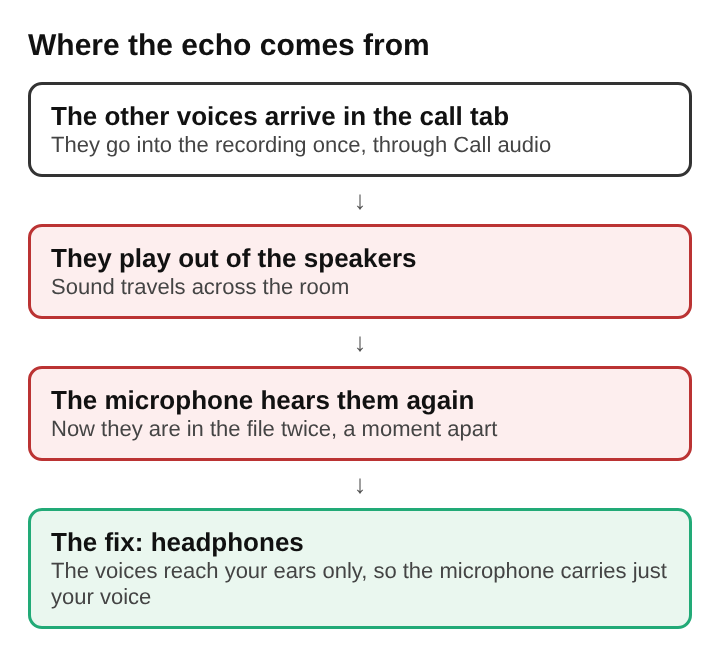
How to stop an echo when recording a video call: headphones
The most reliable fix is also the simplest: wear headphones. If the remote voice only plays into your ears, nothing reaches the microphone through the air, and the loop never forms. The Google Meet guide for this recorder gives the same advice for exactly this reason. Without headphones, the other voices come out of the speakers and back into the microphone.
A few details matter:
- Closed earcups or in-ear buds leak less sound than open designs.
- Keep the volume moderate. Loud headphones can still leak into a sensitive microphone sitting close to them.
- Make sure the call app actually sends sound to the headphones. Check its output device, and the computer's, before the call.
- Do this on both ends if you can. A guest on laptop speakers can send an echo of your own voice back to you inside the call audio.
One catch with wireless headsets. The same guide warns that when a Mac uses a Bluetooth headset as a microphone, it switches the headset into a low-quality mode. Use the headset to listen, and a wired or USB microphone for your voice.
Echo cancellation settings in the browser and the call window
Software can try to remove echo too. The method is called acoustic echo cancellation, and the echo it targets is sound from a loudspeaker reflected and recorded by a microphone. It is hard to cancel because the room changes the sound on the way: soft furnishings absorb some frequencies, and walls reflect different frequencies at different strengths.
The recorder has a setting here worth knowing. Under Options, leave Record the microphone untouched unticked for calls. Its Google Meet guide says ticking it turns off the echo, noise and volume correction, which is the opposite of what a call recording needs.
Even with that correction on, an echo can still slip through in a loud or bare room. Treat these settings as a backup, and treat headphones as the real fix.
Recording both sides of a video call with Cheap Recorder without doubled audio
The second cause of echo is a capture mistake, and it is easy to make. In this recorder, the other side of the call comes from the Call audio tile. The steps are:
- Press Pick the call tab.
- Choose the Meet or Teams tab.
- Tick Share tab audio. Some versions of Chrome call it Also share tab audio.
- Press Share.
From then on, the tile keeps only the sound of that tab and mixes it into the recording with your microphone.
The doubling happens in the next step. You also choose what to capture on screen: Whole screen, A window, A browser tab, or Webcam only. Say you pick the Meet tab as the thing to film and tick its sound there too, with Call audio already set up. Now the other voices go into the file twice. The fix is to take the tab's sound in one place only. Let Call audio carry the call, and leave the tab sound unticked when you film the tab.
The opposite mistake gives you silence instead of an echo. Chrome only hands a web page another tab's sound when that tab is shared with its tab audio option ticked. If you share a window or the whole screen, or leave the box unticked, the Call audio tile says that tab had no audio. The causes of that silence are covered in why a screen recording has no sound in the browser. The same steps apply on Teams, as shown in recording a Microsoft Teams meeting in Chrome.
Setup takes about a minute, so do it before the call begins. Tell everyone on the call that you are recording, because the law on recording calls differs from place to place.
Keeping the local voice and the remote voice on separate tracks
A mixed file hides where an echo came from. Before you start, tick Also save every source separately under Options. Each source, meaning each microphone and the other side of the call, is then saved as its own file. These files go in a Separate sources folder inside the recording's folder.
That split makes diagnosis quick. Play your microphone track alone while the guest is speaking:
- If you hear a faint copy of their voice, the echo is acoustic and came through the air.
- If the microphone track is clean but the mix still doubles, the cause is a capture setting.
Separate tracks also let you turn down your microphone during the guest's answers in an editor, which removes a mild echo without touching their clean track. The same option is the basis for recording a podcast with separate tracks in the browser.
Spotting an echo in the transcript and playback before sharing
Catch an echo early, before you send the file to anyone. During the recording, press M or Add marker the moment you hear something odd, so you can find it again. When you press Stop and finish, the recording appears on the page with a player, and it is already saved in the folder. Put on headphones and jump to each marker.
The live transcript can also give you a hint. It runs in one of 25 languages and saves captions as an SRT file. While it is on, Chrome sends the microphone audio to Google to turn it into text. If the guest's words turn up in it, your microphone may be hearing the speakers.
Frequently asked questions
Why does only the other person hear an echo on a call?
Their voice is coming out of your speakers and going back into your microphone, so they hear themselves a moment later. You don't hear it, because the echo is of their voice, not yours.
Does a headset microphone stop an echo in a call recording?
Mostly, yes. The headphones keep the remote voice out of the room. On a Mac, a Bluetooth headset used as a microphone drops into a low-quality mode, so a wired or USB microphone for your voice is the better pairing.
Can an echo be removed from a recording after the call ends?
A mild echo can often be reduced, especially if each voice was saved on its own track. A strong echo mixed into a single track is hard to remove cleanly, so it is far easier to prevent it during the call.
Why does a recorded video call sound doubled?
The same call audio was usually captured twice. This happens when the tab's sound is taken both by the screen capture and by a separate call audio source. Take the tab's sound in one place only.
Stopping an echo when recording a video call in the browser
Most call recording echoes trace back to one of two paths: sound through the air, or sound captured twice. Headphones close the first path. Taking the call tab's sound in exactly one place closes the second. Echo correction in software helps, but a room still changes the sound, so it can't replace those two steps. Recording each voice on its own track tells you which path caused a problem, and a short listen with headphones before sharing catches what slipped through. Set all of this up before the call starts, and the file you keep will hold each voice once.