To record a Microsoft Teams meeting in Chrome with every voice in it, you need two sounds in one file: your own microphone and the sound of the tab the meeting plays in. Knowing how to record a Microsoft Teams meeting in Chrome mostly comes down to that second sound. A browser keeps each tab's audio to itself unless you hand it over on purpose, so the job is to open the meeting in a tab, share that tab's sound with a recorder, and add your microphone before anyone starts talking.
Why the meeting tab has to share its sound
Microsoft Teams is a collaboration platform from Microsoft with workspace chat, video conferencing and file storage. When you open a Teams meeting in Chrome instead of the desktop app, the other people's voices play inside that one browser tab.
Chrome hands a web page the sound of another tab only when you share that tab and tick its tab-audio option. If you share a window or the whole screen instead, or leave the box unticked, the recorder gets pictures and no meeting sound. That one checkbox is the most common reason a meeting recording has your voice and nobody else's.
Cheap Recorder is a screen recorder that runs in Google Chrome on macOS, Windows and Linux, with nothing to install. It records the screen, one or more microphones, the webcam and the other side of a call, whether that is a Teams meeting, a Google Meet call or any call in a Chrome tab, into one MP4. The other side comes from a tile of its own, called Call audio, built around that tab-sharing rule.
How to record a Microsoft Teams meeting in Chrome, step by step
Setting up takes about a minute, so do it before the meeting starts, not while someone is already speaking.
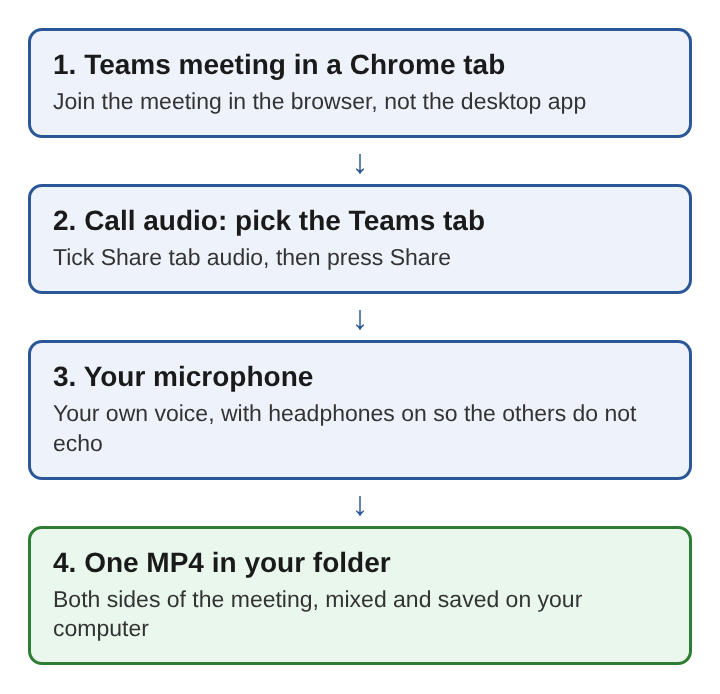
- Open the Teams meeting in a Chrome tab and leave it open.
- Open the recorder in a second tab and allow your microphone.
- In the Call audio tile, press Pick the call tab.
- In Chrome's sharing window, choose the Teams tab, tick Share tab audio (some versions of Chrome say "Also share tab audio") and press Share.
- Under what to capture, pick Whole screen, A window, A browser tab or Webcam only, and turn the webcam on or off with its switch.
- Put on headphones, then start the recording.
The Call audio tile keeps only the sound of the tab you picked and mixes it into the recording with your microphone. Notifications from other tabs, music in another window and the hum of other apps stay out.
A worked example: a weekly project meeting
Say you run a 30-minute project meeting every Tuesday in Teams, with four people taking part from different places. You want a recording of the whole conversation, the slides someone shares, and a way to jump back to the decisions later.
Five minutes before the start, you open the meeting link in Chrome and enter the meeting from the browser. In a second tab you open the recorder, allow your microphone and press Pick the call tab. You choose the Teams tab, tick Share tab audio and press Share. The Call audio tile now shows the meeting tab.
Because the slides appear inside the meeting tab, you set what to capture to A browser tab and pick the same Teams tab, so the picture shows the shared slides and faces. You leave the tab's own sound unticked in that second sharing window, since Call audio already carries it. You put on headphones and press record as people arrive.
Twelve minutes in, the group agrees to move a deadline. You press M, or the Add marker button, to mark the moment. At minute 24 someone takes on a new task, and you mark that too. When the meeting ends, you press Stop and finish. The recording shows on the page with a player, and it is already in the folder you picked, as one MP4 with every voice in it.
The next Tuesday, the same setup takes about a minute again, because the steps never change.
Echo, doubled voices and a silent other side
Three problems cover most failed meeting recordings, and each has a plain cause.
- The other side is silent. The tab was shared without its sound, or a window or the whole screen was shared instead of the tab. The Call audio tile then says that tab had no audio. Pick the Teams tab again and tick the box. The piece on screen recordings with no sound goes through the other causes.
- The other voices echo. Their voices come out of your speakers and back into your microphone. Audio feedback is that same loop, where sound from a loudspeaker reaches the microphone again. Headphones break the loop.
- The other voices sound twice. The tab's sound was ticked both when you picked what to capture and in Call audio, so it went into the file twice. Tick it in Call audio only.
What you end up with, and where it is saved
Each recording is one MP4, written every second straight to a folder you pick on your own computer. MP4 is a container format that stores video and audio, and it can hold subtitles too, which is why one file can carry the slides, the faces and every voice.
The file is not uploaded. It leaves your computer only if you press Convert, which sends it to the server to change its format and deletes it once done, or an AI button, which sends the transcript.
If you only need the conversation, turn the webcam off and pick no screen. The recording is then an M4A sound file instead of a video.
If you want to edit each voice later, tick Also save every source separately under Options before you start. Each source, your microphone and the meeting's sound, is then saved as a file of its own in a Separate sources folder inside the recording's folder. The piece on recording separate tracks covers that setup in more depth.
A transcript of the meeting while it happens
A live transcript can run during the recording, in one of 25 languages, and the captions can be saved as an SRT file next to the video. One thing to know before you switch it on: while it is on, Chrome sends the microphone audio to Google to turn it into text. If a meeting is confidential, decide on the transcript before it starts, the same way you decide on the recording.
Frequently asked questions
Can you record a Teams meeting in the desktop app this way?
No. The Call audio tile takes its sound from a Chrome tab, so the meeting has to be open in Chrome for the other voices to reach the recording.
Why does the recording have only your voice?
The meeting tab was shared without Share tab audio ticked, or a window or the whole screen was shared instead of the tab. Pick the Teams tab again in Call audio and tick the box.
Do you need to tell people the meeting is being recorded?
Yes, tell everyone before you press record. The law on recording calls differs from place to place, and telling people first keeps you on the safe side everywhere.
Can you record only the sound of a Teams meeting?
Yes. Turn the webcam off and pick no screen, and the recording is saved as an M4A sound file with both sides of the conversation.
Consent and the law on recording a meeting
A meeting recording holds other people's voices, faces and words, so the question of consent comes before the question of buttons. Call recording laws vary between countries, states and provinces. Some places allow a recording when one person on the call agrees to it. Others expect every person to be told, often at the very start, so they have the chance to end the call or object.
The simplest habit works in all of them: say at the start that the meeting is being recorded, and why. Put it in the meeting invite as well, so people who arrive late still know. If someone objects, stop and talk it through before going on. A recording that everyone agreed to is one you can share with the team, quote from in notes and keep without worry, and that agreement matters more than any setting in the browser.