You finished a recording and now a video site, an editor or a colleague wants captions as an SRT file. That small text file holds every spoken line with the moment it starts and stops, and players show it on top of the video. The catch is timing: a caption file is easiest to get when the words were written down while you spoke. A browser recorder such as Cheap Recorder does exactly that, writing a live transcript during the recording and handing over the captions at the end.
Once you know what goes into the file, you can check it, put names on it and fix a wrong word before anyone else sees it.
How to get captions as an SRT file while you record
The captions come from a live transcript, so the work happens before you press the record button. The transcript uses Chrome's own speech recognition, which means the recording has to run in Google Chrome. In another browser the option is greyed out and reads "Live transcript needs Google Chrome". You also need a microphone and an internet connection, because while the transcript is on, Chrome sends the microphone audio to Google to turn it into text.
- Open Options and check that Live transcript is ticked. It is ticked by default.
- In the menu beside it, choose the language you will speak. There are 25, among them English (UK), English (US), Arabic, Filipino, Hindi, French, Spanish and Japanese. Choose before you start, because the language is set when the recording begins.
- Press Start recording and talk normally. Your words appear as captions at the bottom of the Preview and settle into a finished line when you pause.
- Press Stop and finish. The transcript is saved next to the recording, as
Weekly demo - transcript.txtbesideWeekly demo.mp4. - In the recording's card, press Captions .srt to download the caption file.
The caption file is not written into the recording's folder on its own. It is downloaded from the card, and the Captions .srt and Transcript buttons only appear when the transcript caught some speech. If you are not sure where the video itself went, the guide to where screen recordings are saved in Chrome walks through the folder and its names.
What one SRT caption is made of
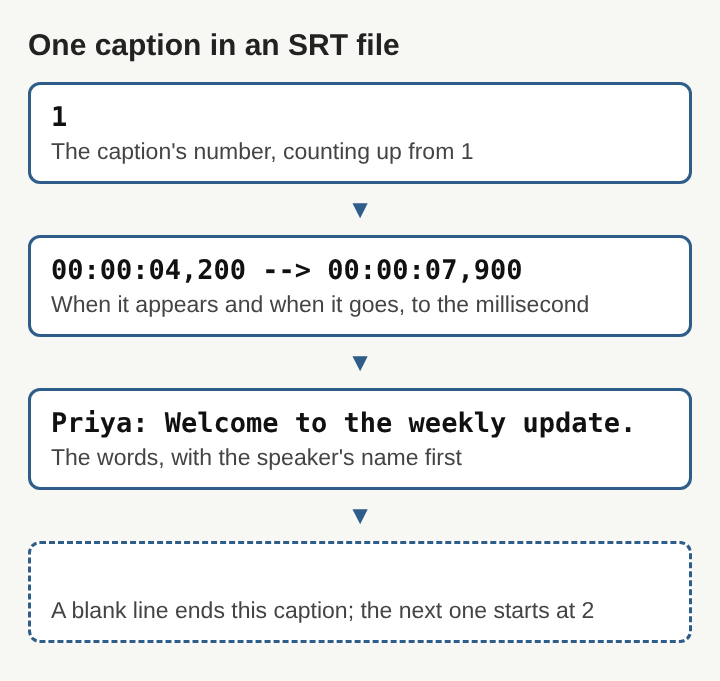
SRT stands for SubRip Text, after an old Windows program called SubRip that pulled subtitles out of video files. Its format is plain text with the .srt ending, and each caption in it has four parts in a fixed order:
- A number, counting up from 1, that says which caption this is.
- A time line: the moment the caption appears, an arrow written as
-->, and the moment it goes. Times are hours, minutes, seconds and then milliseconds after a comma, such as00:02:16,612. - The words, on one line or more.
- A blank line, which ends that caption so the next number can start.
Because it is plain text, you can open an SRT file in any text editor. That is also why it travels so well. Some players read unofficial tags for bold, italic, underline and colour, but many ignore them, so plain words are the safe choice.
Closed captions, not words burned into the picture
There are two ways to put words on a video. Closed captions stay hidden until the viewer turns them on, while open or burned-in captions are part of the picture itself and everyone sees them. An SRT file is the closed kind: it sits beside the video and the player lays it on top.
The captions you watch on the Preview while recording are not drawn into the video. The MP4 stays clean, and you add the caption file wherever you publish the video, such as YouTube or Vimeo, or import it into most video editors. The practical gain is control. If the transcript heard "sink" when you said "sync", you can fix the word in the SRT file before anyone sees it, without touching the video.
A close relative is WebVTT, a W3C format for timed text that web pages use with the HTML5 track element. It was broadly based on SubRip but is not fully compatible with it, so when a site asks for a .vtt file, convert the SRT rather than renaming it.
Putting real speaker names on each caption
Each line of the transcript carries the time it was said, measured from the start of the recording, and a label for the sound source that was loudest while it was spoken. That label might be your microphone's model name, "Meeting" for the other side of a call recorded from its tab, or "Screen" for sound from the tab or window being filmed.
Real names read better. Above the transcript there is one Speaker box per label. Type a name into each, such as "Priya" in place of the microphone's model name, and press Save captions. The transcript is written again with the new names, and the caption downloads pick up the change. Every line in the transcript and the caption files then starts with the name, as in "Priya: Welcome to the weekly update."
Do this before you press Captions .srt. A file downloaded earlier keeps the old labels.
A worked example: captions for a weekly demo
Say Priya records a short weekly demo of a new screen, speaking English (UK), and wants captions for the team's video page.
- Before recording, she opens Options, sees Live transcript already ticked, and picks English (UK) in the menu beside it.
- She names the recording "Weekly demo", presses Start recording and talks through the screen. Her words show at the bottom of the Preview as she goes.
- She presses Stop and finish. The folder now holds
Weekly demo.mp4andWeekly demo - transcript.txt. - In the card, her lines are labelled with her microphone's model name. She types "Priya" in the Speaker box and presses Save captions.
- She presses Captions .srt. The first caption in the file reads as a number 1, a time line starting a few seconds in, and "Priya: Welcome to the weekly update."
- She opens the file in a text editor, fixes one product name the recognition misheard, saves it, and uploads it next to the MP4.
Nothing in the video changed. If she spots another wrong word next week, she edits the SRT file and uploads it again.
Why caption times can run a moment early or late
Chrome reports a time for each line, not for each word. So a caption covers a whole spoken line, and its start and end can land a moment before or after the voice. For ordinary captions that is fine. For subtitles that must match the picture frame by frame, open the file in a subtitle editor and nudge the times.
Long pauses are not a problem in themselves. If Chrome's speech recognition stops listening during a silence, it is started again for as long as the recording runs. Mixing languages is a different matter: Chrome listens for one language per recording, and switching halfway gives odd results.
One limit matters most. The transcript is made only while you record. If Live transcript was off, there is no way to add a transcript, and so no SRT file, to that recording afterwards. The reverse also holds: unticking it before Start recording keeps the sound from leaving the computer.
Frequently asked questions
Can you get an SRT file from a recording made without a transcript?
Not from the same recording, because the transcript is only made live while recording. Record again with the live transcript ticked, or caption the old file by hand in a subtitle editor.
Why are the Captions .srt and Transcript buttons missing?
They only appear when the transcript caught some speech. Check that Chrome may use the microphone, that you are online and that the right language was chosen.
Is an SRT file the same as the transcript file?
No. The transcript is plain text with times and names, made for reading, while the SRT file splits the same lines into numbered captions with start and end times for a player.
Are SRT captions burned into the video?
No. An SRT file is a closed caption track that sits beside the video, so viewers can switch it on or off and you can edit it at any time.
Keeping SRT captions accurate
An SRT file is only as good as the words in it. A good microphone close to your mouth gives speech recognition the clearest sound, and a headset or desk microphone beats a laptop's built-in one in a noisy room. Speak in the language chosen for the recording, and pause briefly between ideas so each caption ends where a thought ends.
Before publishing, read the file once from top to bottom. Look closely at names, product words and numbers, and fix any that came out wrong. Check that each speaker's name is spelled the same way throughout, and that no caption runs on for too long to read. Because the captions live in their own small text file, every one of those fixes takes seconds and never touches the video.
Cheap Recorder
Screen recording that is cheap and easy. Visit cheaprecorder.com