You stop a recording, close the tab, and then cannot find the video. So where are screen recordings saved in Chrome? When the recording is made by a web page, the page decides, and there are two routes. On the first, the page asks for a folder before you start, Chrome asks whether that page may edit files in it, and the recording is written there while you work. Cheap Recorder, which records the screen, the webcam and both sides of a call into one MP4 in Chrome on macOS, Windows and Linux, takes this route. On the second, used when a browser cannot write to a folder, the recording is held in memory and lands in your usual downloads folder when you stop. Knowing which route you are on tells you where to look.
Where are screen recordings saved in Chrome when you pick a folder
Chrome has a feature that lets a web page write files into a folder you allow. The recorder's first step, Where to save, reads no folder chosen until you press Choose folder…, and the start bar at the bottom says choose a folder first. Chrome's folder picker opens in your Videos folder. You pick a folder, or make one such as "Recordings", and Chrome asks whether the page may edit files there. Once you allow it, the folder's name shows in step 1.
The answer to "where is it saved" is that folder, and nothing goes to a server. When you press Stop and finish, a "Recording saved." message appears and the recording's card shows saved to followed by the folder's name. That line is the quickest reminder of where the file went.
The folder is not remembered between visits. You choose it again each time you open the recorder, and Chrome's picker normally reopens where you were last time, so it takes a moment. The upside is that you always see the folder before a recording starts.
One folder per recording, named by date and time
Inside the folder you chose, every recording gets a folder of its own. Its name is what you typed in Name this recording, then the date and the time the recording began on your own computer's clock. Leave the box empty and the recording is simply called "Recording".
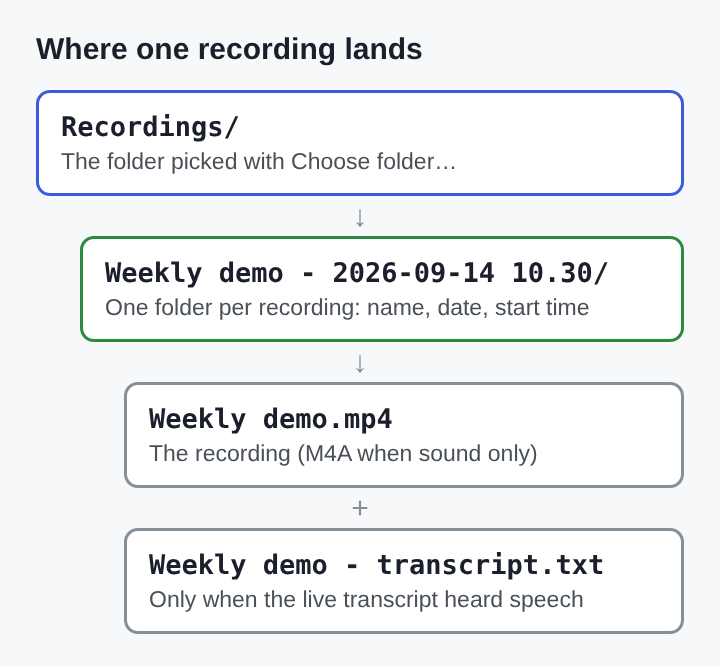
The date comes year first, then month, then day, then the time. That order matters. The ISO 8601 date format orders values from the largest unit to the smallest, so sorting the text sorts the dates, which lets file systems put them in time order on their own. Putting a date and time in a file name is a common habit; the Wikipedia page on file names notes that phone camera software and screenshots use it widely.
Two more rules shape the names:
- A second recording with the same name in the same minute gets (2) on the end, so two takes never mix.
- Characters a file name cannot hold (
/ \ : * ? " < > |) are left out, and long names are cut at 60 characters.
Sorting the chosen folder by name groups each recording's takes together, oldest first. Sorting by date shows everything in the order it was made.
What sits inside a saved recording's folder
A recording's folder normally holds two files and nothing else.
- The recording itself, named after the recording, such as
Weekly demo.mp4. It is an MP4 with H.264 video and AAC sound. H.264 is by far the most commonly used format for recording, compressing and sharing video, which is why the file plays almost anywhere. - An M4A file instead, when you recorded sound only, with no screen and no webcam. The article on M4A files covers when a recording turns into one.
- A WebM file instead, in the rare case that the browser cannot record MP4.
- The transcript,
Weekly demo - transcript.txt, when the live transcript was on and heard some speech. It is plain text with the time of each line.
Files you ask for later land in the same folder. A converted copy keeps the recording's name with a new ending, such as Weekly demo.mp3, beside the original, and the original is never changed. The steps for turning a screen recording into an MP3 end with that file in place.
Caption files are the exception. An SRT file is not written into the folder; pressing Captions .srt or Transcript on the recording's card downloads it, so it goes wherever your downloads go.
Separate sources and the extra folder they add
Under Options, the box Also save every source separately adds one more folder, Separate sources, inside the recording's folder. The MP4 and the transcript stay where they were. The new folder holds a file per source for editing elsewhere: one file per microphone, named after the microphone and starting with audio_, plus a file for the other people on a call and one for the webcam.
If you are hunting for one voice from a call, open the recording's folder, then Separate sources, and search for audio_. Leave the box off when you only want the video and its transcript.
A worked example: finding last Tuesday's call
Say you recorded a project call last Tuesday at 2:05 in the afternoon, typed "Client call" as the name, and chose a folder called Recordings. A week later you need it.
- Open Recordings in your file manager and sort by name.
- Scroll to the folders that start with "Client call". Each ends with its date and start time, so the one you want reads
Client call - 2026-10-27 14.05. - Open it.
Client call.mp4is the video, andClient call - transcript.txtis there if the transcript heard speech. - If you made two takes that minute, the second folder ends in (2).
The files are ordinary files, so you can move or rename them. The recording's card on the page reads the file from where it was saved, so finish any downloads or conversions before moving it.
When Chrome saves the recording as a download
Some browsers do not let web pages write into a folder. In that case step 1 says the browser cannot write to disk and that the file downloads at the end, and Choose folder… is greyed out.
You can still record. The recording is kept in the browser's memory and downloaded to your usual downloads folder when you press Stop and finish, and the card says downloaded instead of "saved to". That word on the card is the clue: look in your downloads, not in a recording folder.
Memory is the weak point of this route. In Chrome with a folder chosen, the recording is written to disk about once a second, so a long recording does not fill your computer's memory, and the top bar shows a timer and how many megabytes have been written. For anything long, the folder route is the safer one.
Frequently asked questions
Why is a recording missing from the downloads folder?
With a folder chosen, the recording is written into that folder and never passes through downloads. Look in the folder named after saved to on the recording's card, inside a subfolder with the recording's name, date and start time.
Is the recording lost if the page is reloaded?
No. The card with its buttons is gone after a reload, but the files stay in the folder you chose.
Where do the SRT captions go?
Captions are not written to the recording's folder. Pressing Captions .srt on the card downloads them to your usual downloads folder.
Can a saved recording be renamed or moved?
Yes, they are ordinary files. Finish any download or conversion from the card first, because the card reads the file from where it was saved.
Keeping saved screen recordings easy to find
Most recordings that seem lost sit in a folder nobody remembers choosing. A few habits keep them in view.
Use one folder for every recording and pick the same one each time. Since the picker reopens where you were last time, this costs one click.
Type a name before you start. A short, plain name such as "Client call" combined with the date and time the folder adds on its own beats a folder full of entries called "Recording".
Keep converted copies beside the original. A file with the same name and a new ending, in the same folder, makes it clear which recording it came from.
Before a long session, make a short trial recording and open its folder. One look confirms the folder, the name and the file, while a problem is still easy to fix. If the trial has no sound, the causes are covered in why a screen recording has no sound in the browser.
Cheap Recorder
Screen recording that is cheap and easy. Visit cheaprecorder.com