To convert a screen recording to MP3 means keeping the sound of a recording and leaving the picture behind. You end up with one small audio file that holds every voice, every click of a keyboard and every word said on a call. The steps are short, but a few choices made before you press record decide whether the MP3 is worth listening to. The examples here use a screen recorder that runs inside Google Chrome and saves the screen, the webcam, your microphones and the other side of a video call into one MP4 on your own computer, with a live transcript.
What it means to convert a screen recording to MP3
A screen recording saved as an MP4 holds two things side by side: a video track and an audio track. In this recorder, the audio inside the MP4 is AAC, a compressed sound format. Converting to MP3 decodes that AAC sound, encodes it again as MP3 and drops the video track.
MP3 is a lossy format. It makes files small by throwing away parts of the sound that people are least likely to notice. It does this by leaving out sounds that other, louder sounds hide from the ear.
One thing to keep in mind: the original AAC sound is already lossy, so turning it into MP3 encodes lossy sound a second time. Each round of lossy encoding can remove a little more, a known effect called generation loss. That is a good reason to always convert from the original file, never from an MP3 made earlier.
Why the audio from a screen recording is useful as an MP3
Say you recorded a 40-minute Google Meet call where a colleague walked through a plan. The screen share mattered while it happened, but now you only want to hear the decisions again on your phone during a walk. The MP4 is large and you have no need for the picture. An MP3 of the same call is a fraction of the size and plays on a phone or a laptop.
Other common reasons:
- You want to send the conversation to someone who only needs to hear what was said.
- You recorded a talk or a podcast episode and the picture was never the point.
- You want to keep an archive of calls without filling your disk with video.
- You want to play the sound in an audio player that does not open video files.
Checking that a screen recording has sound before converting it to MP3
Converting cannot add sound that was never captured. Before you convert, play the original recording and listen to a few spots: the start, the middle and a moment where the other person was talking.
The most common gap is a silent other side of the call. Chrome only gives a web page the sound of another tab when that tab is shared with its tab-audio option ticked. If a window or the whole screen was shared instead, or the box was left unticked, the Call audio tile reports that the tab had no audio. In that case your microphone is in the file but the other people are not. There is more on this in why a screen recording can have no sound in the browser.
The opposite problem is voices that sound twice or echo. If the tab's sound is ticked both when filming the Meet tab and in Call audio, the other voices go into the file twice. Sound from speakers leaking back into your microphone does the same. Headphones fix most of it, and stopping an echo when recording a video call covers the rest. Whatever you hear in the original, you will hear in the MP3.
Steps to convert a screen recording to MP3 in Chrome
Cheap Recorder runs in Chrome on macOS, Windows and Linux with nothing to install, and writes each recording into a folder you pick on your computer. Converting happens from the recording's card on the same page.
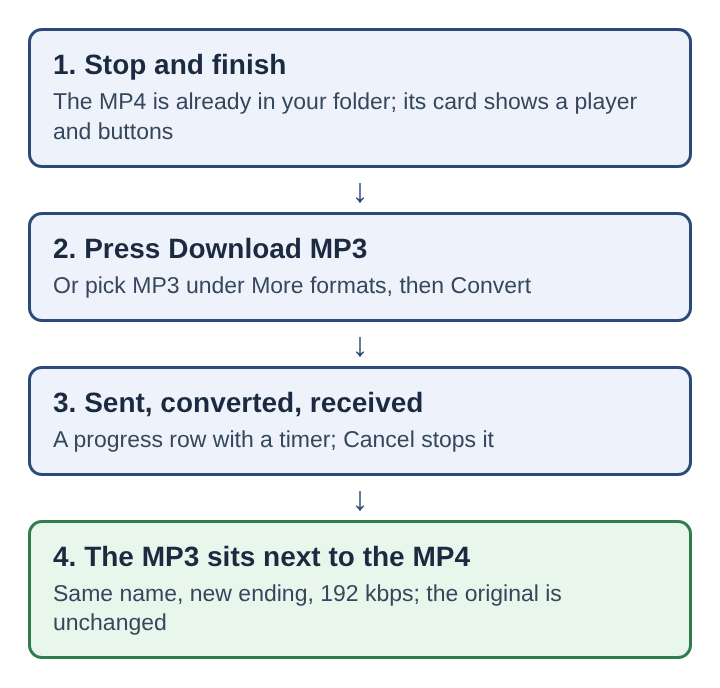
- Finish the recording with Stop and finish. The recording appears on the page with a player, and it is already saved in your folder.
- Play part of it to confirm both sides of the conversation are there.
- On the recording's card, press Download MP3. That is the shortest route. The same MP3 can also be picked from the More formats menu, followed by Convert; that menu also offers MP4, MOV, WebM, GIF, M4A and WAV.
- Watch the progress row under the buttons. It shows the recording being sent, converted and received, with a timer, and Cancel stops it.
- Keep the MP3. It downloads and is also saved in the recording's own folder, next to the original, with the same name and the new ending. The original MP4 is never changed.
The card lasts only while the recorder page stays open, so convert before you close it. Closing the tab during a long conversion cancels it, so keep the tab open and the computer awake until the file is downloading. Converting uses the recording exactly as it was made.
Converting is the one step where the file leaves your computer. Download MP3 or Convert sends the recording to a server to change its format, and the server deletes it as soon as the conversion is done. The card also has a Download button named after the recording's own format, such as Download MP4, which hands over the original file from your computer with no upload at all.
If you recorded with the webcam off and no screen picked, the recording is already a sound-only M4A file. You can still convert it, but only to MP3, M4A or WAV, since the other formats need a picture. When a recording becomes an M4A file explains that case in more detail.
Keeping both sides of a video call in the MP3 from a screen recording
An MP3 of a call is only useful if the other people can be heard in it. That depends on setup done before the call starts, which takes about a minute.
In the Call audio tile, choose Pick the call tab, select the tab with your Meet or Teams call, tick Share tab audio (some versions of Chrome say Also share tab audio) and press Share. Only the sound of that tab is kept, and it is mixed into the recording with your microphone. The resulting MP4, and so the MP3 made from it, holds both sides in one track. For Teams, see recording a Microsoft Teams meeting in Chrome.
Two more habits help the MP3:
- Tell everyone on the call before you record. The law on recording calls differs from place to place.
- Wear headphones, and on a Mac use a wired or USB microphone for your voice. A Bluetooth headset used as a microphone is switched into a low-quality mode.
If you plan to edit later, tick Also save every source separately under Options before recording. Each microphone and the other side of the call is then saved as its own file in a Separate sources folder inside the recording's folder, so one voice can be fixed without touching the others. With that box ticked, the card shows no download or convert buttons; running bash finalise.sh in the Separate sources folder, with ffmpeg installed on the computer, turns each microphone's file into a WAV instead. Recording a podcast with separate tracks walks through that setup.
MP3 bitrate and file size for audio taken from a screen recording
The MP3 from this converter is encoded at 192 kbps. Bit rate is the amount of data used per second of sound, so you can work out the size yourself. 192 kilobits per second is 24 kilobytes per second, which comes to about 1.4 MB per minute and roughly 86 MB per hour. A one-hour meeting fits easily on any phone.
The other sound-only choices compare this way:
- M4A is the same AAC sound the MP4 already uses, also at 192 kbps, so the file is about the same size as the MP3.
- WAV is uncompressed, 16-bit at 48 kHz. A single channel at that setting alone is 768 kbps, four times the MP3 rate, and stereo doubles it. It is the biggest file and the best starting point for an audio editor.
For listening, sharing and archiving speech, 192 kbps MP3 is plenty. For editing, mixing or cleaning up noise, WAV keeps more to work with.
Using the MP3 from a screen recording to make a transcript
Many people convert to MP3 because they want the words in writing. Before doing that, check whether you already have them. This recorder can make a live transcript while you record, in one of 25 languages, with captions as an SRT file. While the live transcript is on, Chrome sends the microphone audio to Google to turn it into text.
The MP3 still has a place next to the transcript. Text is quick to search, but tone, hesitation and exact wording are easier to judge by ear. If you pressed M or Add marker at key moments during the call, those marks help you find the same spots again. Marking moments in a recording covers that habit.
Frequently asked questions
Does converting a screen recording to MP3 lower the audio quality?
A little, in theory. The sound in an MP4 screen recording is usually already compressed, and MP3 compresses it again. Converting from the original rather than from an earlier MP3 keeps the loss to one round.
Can a screen recording with no sound be converted to MP3?
The conversion can run, but the MP3 will be silent too, because converting only changes the format of sound that is already there. Fix the capture settings and record again.
Is MP3 or M4A the better format for the audio of a screen recording?
M4A keeps the same AAC sound the MP4 already holds, so it avoids a second round of encoding. MP3 plays on more older devices and players. At the same 192 kbps the two are about the same size.
Can a screen recording be converted to MP3 without uploading it anywhere?
Only if the conversion runs on your own computer. A browser converter that works on a server has to receive the file first, so check whether it deletes the file after converting.
When to keep the original screen recording and when to keep only the MP3
An MP3 is a copy with the picture removed, and you cannot get the picture back from it. Keep the original MP4 when anything on screen matters: slides, a shared document, a bug being shown, a face reacting to news. Keep it too if you might want another format later, since every new conversion should start from the original, not from the MP3.
Keep only the MP3 when the recording was a conversation and nothing more. A weekly check-in, a phone-style interview or a talk with no visuals loses nothing once the picture is gone, and the saved space adds up over months. A practical middle path is to keep originals for a set period, convert the ones that are pure talk to MP3 and delete the video once you are sure no one will need to see it. Whatever you choose, listen to the MP3 once before you delete the source, so you know both sides of the call made it into the file.
Cheap Recorder
Screen recording that is cheap and easy. Visit cheaprecorder.com