A recording that ends in .m4a instead of .mp4 raises one plain question: what is an M4A file, and why did your recording turn into one? The short answer is that an M4A file is sound packed in the same container MP4 video uses, with no picture inside. A recording becomes one when there is sound to save and nothing to show. In the browser, that happens when you record a call or your own voice with no screen and no webcam. Cheap Recorder, a screen recorder that runs in Google Chrome, works this way: it saves the screen, microphones, webcam and the other side of a call into one MP4, and it saves an M4A file when you turn every picture source off.
What is an M4A file, and what sits inside it
An M4A file is a container. It holds encoded sound, plus a little information about that sound so a player knows how to read it. The container format is MPEG-4 Part 14, the same one behind ordinary MP4 video files. The MP4 file format page on Wikipedia lists the extensions that format uses, .mp4 and .m4a among them, and notes that audio-only MPEG-4 files generally carry the .m4a extension. The ending is a signal to you and to your apps: this file has sound and no picture.
The same page lists a few relatives. Audiobooks and podcasts with chapter markers more often use .m4b, and iPhone ringtones use .m4r. They are all the same family of file, named for what they are meant to do.
The sound inside an M4A is usually encoded with Advanced Audio Coding, or AAC. That page describes AAC as a lossy way of coding sound, first released in 1997, and says AAC files are typically packed in an MP4 container with the .m4a extension. Lossy means the encoder throws away some detail to keep the file small. For speech, the result is a file far smaller than raw, uncompressed sound, and it still sounds clear.
So when you open an M4A, you are opening two things at once: a wrapper and the compressed sound inside it. Most confusion about the format comes from mixing those two up.
How M4A differs from MP4, MP3 and WAV
M4A and MP4 share the same container. An MP4 from a screen recording holds a video track and a sound track. An M4A holds only the sound track. The sound inside both can be the very same AAC. The difference is the missing picture, plus the ending that announces it.
MP3 is an older lossy format that plays almost everywhere. According to the AAC page, AAC was designed as the successor of MP3 and generally sounds better than MP3 at the same bit rate. Bit rate is how much data each second of sound gets, so at an equal file size, AAC in an M4A usually keeps more of the original.
WAV is uncompressed. Nothing is thrown away, so it is the largest of the three, and it is the safest starting point for heavy editing because nothing has been lost yet.
For a recorded conversation, the choice usually comes down to this. Keep M4A for listening, storing and transcribing. Pick MP3 when a podcast host or an older player asks for it. Pick WAV when an audio editor will work the file hard.
When a recording in Chrome becomes an M4A file
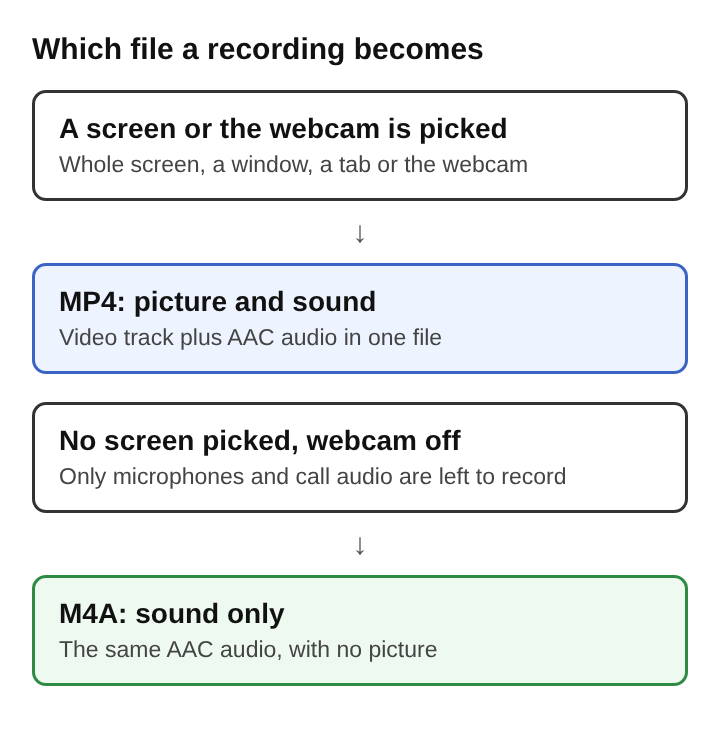
A recorder decides the file type from what it captures. With a picture, it writes a video file. With only sound, a video file would carry an empty or black picture track, which wastes space and confuses players. Writing an audio file is the cleaner choice.
In Chrome, the recorder offers four choices under What to capture: Whole screen, A window, A browser tab or Webcam only. A switch turns the webcam on or off. When the webcam is off and no screen is picked, the recording is saved as an M4A sound file. Pick a screen, a window or a tab, or switch the webcam on, and the result is an MP4.
Here is a worked case you can follow. You have an interview on Google Meet and want only the sound for your notes.
- Leave What to capture with no screen, window or tab picked.
- Switch the webcam off.
- Check that your microphone is ticked in the Microphone tile.
- In the Call audio tile, press Pick the call tab, choose the Meet tab, tick Share tab audio (some versions of Chrome say Also share tab audio) and press Share.
- Name the recording, start it, and press M or Add marker when the guest answers the question you came for.
- Press Stop and finish. The page shows a player, and the recording is already in your folder as one M4A file.
Getting both sides of a call into an audio-only file
For many calls the picture adds little. Interviews, check-ins and podcast conversations are about what people say, and a file with only sound is smaller and quicker to move around.
Getting the other side of the call into the file is the step people miss most. Chrome hands a web page the sound of another tab only when that tab is shared with its tab-audio box ticked. If you share a window or the whole screen instead, or leave the box unticked, the Call audio tile says that tab had no audio. The recorder keeps only the sound of the shared tab and mixes it into the recording with your microphone. If your files keep coming out silent, the common reasons a browser recording has no sound usually explain it.
Wear headphones during the call, so the other voices do not leave your speakers and come back through your microphone. Tell everyone on the call before you record, because the law on recording calls differs from place to place. Setting up the call audio takes about a minute, so do it before the call starts.
Saving each voice as a separate audio file
One mixed file is fine for listening. For editing, separate files are easier. Under Options, ticking Also save every source separately before the recording starts saves each microphone and the other side of the call as a file of its own, in a Separate sources folder inside the recording's folder. Each microphone's file is named after it and starts with audio_.
With separate files you can lower one loud voice, cut a cough from one track, or clean up one speaker without touching anyone else. The sources open one after another, so the files can begin a fraction of a second apart. One sharp clap just after you start gives every file the same spike to line them up later, and a thirty-second trial run catches problems before the real session. For a full setup with several people, see recording a podcast with separate tracks in the browser.
Everything is written to a folder you pick on your own computer, every second while recording, one recording per file. Nothing is uploaded while you record.
Turning an M4A recording into words
Sound-only recordings and transcripts suit each other. Once there is no picture, the words are what you will search through later.
Here the transcript is made live, while you record, in one of 25 languages, and the captions are saved as an SRT file, a plain text file of timed lines. One privacy detail matters: while the live transcript is on, Chrome sends the microphone audio to Google to turn it into text. If a conversation is sensitive, decide before you start whether you want that.
Markers help too. A marker set with M during the recording flags a moment you want to hear again, so you can jump to it in the file and in the transcript. More on that in marking moments in a recording to find them later.
Downloading and converting an M4A recording
The recording's card has a Download button named after the file's own format, so a sound-only recording reads Download M4A. It hands you the original file straight from your computer, with no upload.
Convert is for when you need another format. MP4, MOV, WebM and GIF all need a picture, so a sound-only recording converts to MP3, M4A or WAV. The M4A choice gives AAC at 192 kbps, the same kind of sound an MP4 recording already carries. MP3 is also 192 kbps. WAV is uncompressed, 16-bit at 48 kHz, the biggest file and the best starting point for an audio editor. A converted file is sent to the server and deleted as soon as the conversion finishes.
One habit saves quality. Converting from one lossy format to another, such as AAC to MP3, encodes the sound a second time and throws away detail again. Convert once, from the original file, never from a copy of a copy.
Frequently asked questions
Is an M4A file the same as an MP4 file?
They share one container format, MPEG-4 Part 14. An M4A holds only sound, while an MP4 usually holds a picture and sound together.
Does saving a recording as M4A lower the sound quality?
Not by itself. The sound in an M4A can be the same AAC found in an MP4, so dropping the picture changes nothing you hear. Quality drops when lossy sound is converted into another lossy format.
Can an M4A file hold video?
Not in normal use. The .m4a ending marks a file with sound only, and a recording with a picture is saved with a video ending such as .mp4.
Why is an M4A file smaller than a WAV file of the same recording?
The AAC sound in an M4A is lossy, so detail the ear barely notices is thrown away. A WAV keeps every sample uncompressed, which makes it the largest version of the same sound.
Cheap Recorder
Screen recording that is cheap and easy. Visit cheaprecorder.com