A raw transcript of a call often reads as one long column of words with a vague label on each line. To name the speakers in a meeting transcript, you need two things: a recording where each voice arrives through its own source, and a step after the call where each label is swapped for a person's name. Get the first part right before you press record and the second part is a short step after the call.
The recorder used here is a screen recorder that runs in Google Chrome and writes a live transcript while it records. It labels every transcript line with the loudest sound source at that moment, and lets you replace those labels with real names before you save the captions.
Why a transcript does not know who is talking
Speech recognition turns sound into words. It does not, on its own, know whose voice it heard. Working out who spoke when is a separate job with its own name: speaker diarisation, which splits an audio stream into stretches that each belong to one speaker. It is built from two parts, finding the points where the speaker changes and grouping the stretches that share the same voice.
Even when software does that grouping, it only gives you Speaker 1 and Speaker 2. Putting a real name on a voice is a different task again, speaker recognition, which identifies a person from the characteristics of their voice and usually needs a stored sample of that voice to match against. Most meeting recordings have no such sample, so in practice a person still types the names.
That is why the simplest route is to make the sources do the separating for you, and then name each source once.
How lines get their first labels
While it records, the live transcript gives each line the time it was said, measured from the start of the recording, and a label taken from the loudest sound source:
- A microphone is labelled with the microphone's own name.
- The call tab, the sound picked up through the Call audio tile, is labelled Meeting.
- The filmed tab's sound is labelled Screen.
So the label tells you where a line came from, not who said it. If you are alone at your desk and everyone else is on the call, your lines carry your microphone's name and everyone else's lines say Meeting. That works well for a two-person call. With three or more people on the other end, they all arrive through one call tab and all share the Meeting label.
Set up the recording so each voice has its own source
The cleanest names come from a recording where one source means one person. A few choices before the call make that possible.
- Bring in the call through Call audio. Press Pick the call tab, choose the Meet or Teams tab, tick Share tab audio (some versions of Chrome say Also share tab audio) and press Share. That keeps only the sound of that tab and mixes it with your microphone.
- Give each person in the room a microphone. When two people share a room, plug one microphone per person into the same computer, open Change or add microphones in the Microphone tile and tick every one. Each microphone keeps its own name, so each person's lines get a label of their own.
- Wear headphones. If the call plays out of the speakers, your microphone hears the other voices again, and their words can turn up under your microphone's label.
- Pick the language first. The transcript language is chosen beside Live transcript under Options before Start recording, and Chrome listens for one language per recording.
Two more points matter before you start. Tell everyone on the call that you are recording, because the law on recording calls differs from place to place. And know that while the live transcript is on, Chrome sends the microphone audio to Google to turn it into text; unticking Live transcript before Start recording keeps the sound on your computer, but then no transcript can be added to that recording afterwards.
How to name the speakers in a meeting transcript
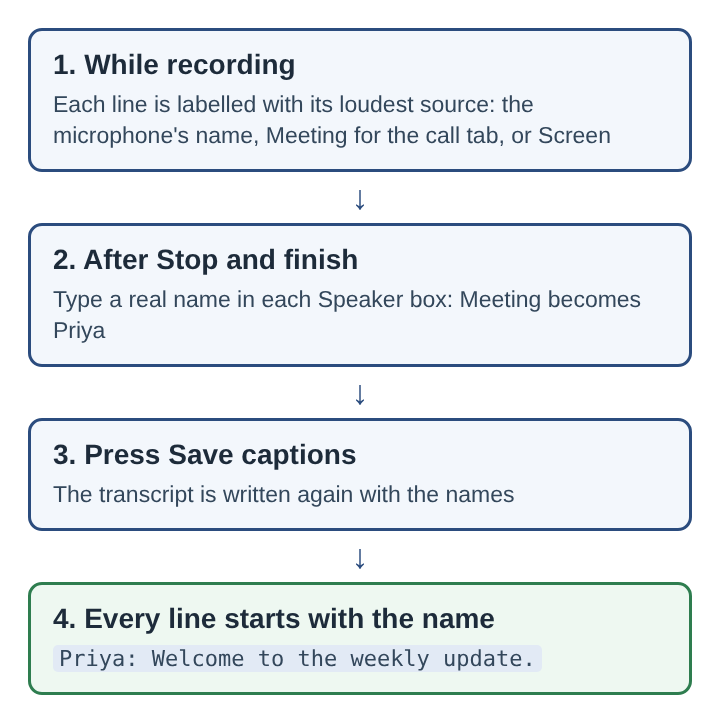
After Stop and finish, the transcript is saved next to the recording and the card shows Speaker boxes above the transcript.
- Read a few lines under each label and decide whose voice it is.
- Type that person's real name in the Speaker box for the label.
- Press Save captions.
Save captions writes the transcript again. Every line of the transcript and of the caption files then starts with the name you typed, in the form Priya: Welcome to the weekly update.
A worked example: a weekly update with one colleague
Sam runs a short weekly update with Priya over Google Meet and wants a transcript where every line says who spoke.
- Before the call, Sam types Weekly demo in Name this recording, picks the Meet tab in the Call audio tile with Share tab audio ticked, puts on headphones and leaves Live transcript ticked with English chosen.
- Sam tells Priya the call is being recorded, then starts recording.
- During the call, Sam's lines are labelled with the name of Sam's microphone, and Priya's lines, which come in through the Meet tab, are labelled Meeting.
- After Stop and finish, Sam types Sam in the box for the microphone label and Priya in the box for Meeting, then presses Save captions.
- The folder for the recording now holds Weekly demo.mp4 and Weekly demo - transcript.txt, and each line in the transcript starts with Sam: or Priya: along with the time it was said.
If a third colleague had taken part from home, that person would also come in through the Meet tab, so their lines would share the Meeting label with Priya's. Sam would then name the label after both, such as Priya and Ahmed, or fix the few lines that matter by hand in the saved files.
Where the names end up
The names go into every place the transcript is used:
- The transcript file, saved in the recording's folder, with the time of each line.
- Captions .srt, a caption file downloaded from the card, where each caption starts with the speaker's name.
- Transcript, a download of the transcript with its formatting as a .md file.
The captions on the preview are not drawn into the video, so the MP4 stays clean and the SRT file is added wherever the video is published, such as YouTube, Vimeo or most video editors. That also gives you one last chance to correct a name or a wrong word in the SRT file before anyone sees it. Name the speakers before you close the page, because the card lasts only while the page is open. For the full layout of what lands in the folder, see where screen recordings are saved in Chrome, and for the caption file itself, how to get captions as an SRT file from a recording.
Frequently asked questions
Can the speakers be named after the recording has finished?
Yes. The Speaker boxes appear after Stop and finish, and Save captions writes the transcript again with the names. Do it before the page is closed, since the card lasts only while the page is open.
Why do several people share the label Meeting?
Every voice that arrives through the call tab comes from the same source, and lines are labelled by their loudest source. To separate people, give each person in the room their own microphone, or fix the shared lines by hand.
Why does a line sometimes carry the wrong name?
The label goes to whichever source was loudest when the line was said, so crosstalk or sound from speakers leaking into a microphone can move a line under the wrong label. Headphones help, and a wrong line can be corrected in the saved transcript or SRT file.
Are the caption times exact for each word?
No. Chrome reports a time per line, not per word, so a caption can start a moment early or late.
Speaker names and a readable meeting record
A transcript is only as useful as your ability to find who said what. Speech recognition gives you the words, diarisation would give you anonymous turns, and a real name still has to come from someone who knows the voices. The practical shortcut is to let the setup do the separating: one person per microphone, the remote side through its own call tab, headphones to keep the two apart. Then naming each source is a single pass, and every line of the record, the transcript and the captions alike, says plainly whose words they are.
Cheap Recorder
Screen recording that is cheap and easy. Visit cheaprecorder.com