To record audio from a browser tab in Chrome, the tab has to be shared with its own audio option ticked, and it has to stay open until the recording ends. Skip either part and the file comes out silent, even though you heard every word while it played.
The steps here use Cheap Recorder, a recorder that runs in a Chrome tab on a Mac, Windows or Linux computer and saves to a folder on that computer. The same rule about tab sound applies to any page that records in Chrome, because the rule belongs to the browser.
Why Chrome guards the sound of a tab
A screencast is a recording of what a screen shows, often with a voice over it. The voice is the easy part. The browser's media tools, described on the WebRTC page, include getUserMedia, which asks for a device's camera and microphone. Your microphone is a device, so a page can ask for it directly.
The sound playing in another tab is not a device. Chrome hands a web page the sound of another tab only when you share that tab and tick its tab-audio option in Chrome's sharing window. Nothing else counts. Sharing a window gives no sound at all, and on a Mac, sharing the whole screen gives none either.
So the choice made in that window decides the sound. Pick the whole screen on a Mac, and the file has pictures and nothing to hear.
Where a recording's sound comes from
A recording here can take sound from up to three places, and each has its own setting:
- Your voice, from the microphones ticked in the Microphone tile.
- The other people on a call, from the Call audio tile, through a shared Chrome tab.
- The sound of what you film, such as a video playing in a tab, from the screen pick, and only when Chrome shares that sound.
Recording audio from a browser tab is the third one. If all you want is the talk or the music in the tab, that is the setting to get right. The microphone only matters if you plan to speak over it.
Steps to record audio from a browser tab
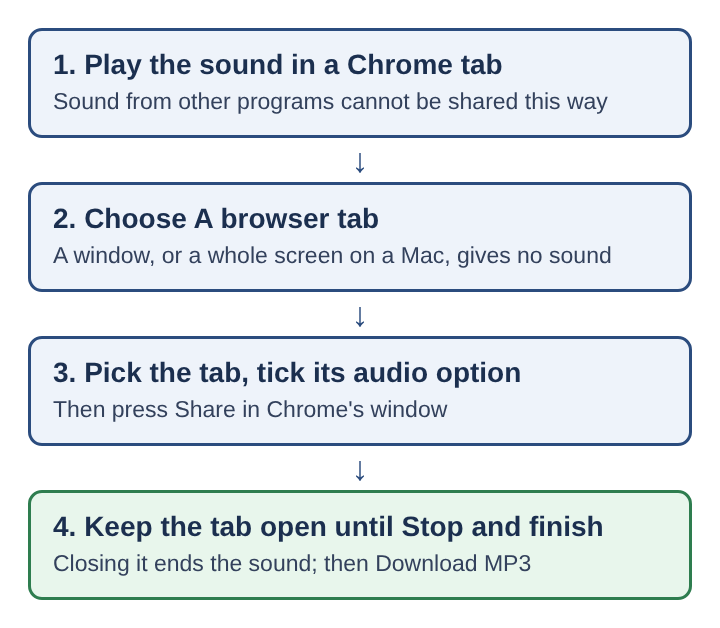
- Open the sound in its own Chrome tab. Sound from other programs on your computer cannot be recorded this way. If a talk plays in a desktop app, find the same talk on the web and play it in Chrome.
- Choose a folder. Press Choose folder… and allow the page to edit files there. Each recording gets its own folder inside it, named with the name you type, the date and the time.
- Set What to capture to A browser tab. The other choices are Whole screen, A window and Webcam only. A switch turns the webcam on or off; for sound from a tab you can leave it off.
- Pick the tab and tick its audio option. Chrome's window lists your open tabs. Choose the one playing the sound, tick the tab-audio box and press Share.
- Record, then play it back. Press play in the tab, start the recording, and leave the tab open until you press Stop and finish. If the tab closes, Chrome stops sharing its sound from that moment.
The result is one MP4 with the tab's picture and sound. If you only want the sound, the next step turns it into an audio file.
Getting just the sound as an MP3 or WAV
After Stop and finish, the recording's card shows a player and a row of buttons. Download MP3 is the shortest route to an MP3. More formats lets you pick M4A or WAV and press Convert instead.
Pick by what happens next:
- MP3 is sound only at 192 kbps. It plays almost anywhere, which suits listening on a phone.
- WAV is uncompressed, 16-bit at 48 kHz. It is the biggest file and the best starting point for an audio editor.
The converted file downloads and is also saved in the recording's own folder, next to the original, with the same name and a new ending. The original MP4 is never changed. Converting sends the file to the server and deletes it there as soon as the conversion finishes, so a recording you would rather keep on your computer alone can stay an MP4.
The card lasts only while the recorder's page is open. Convert before you close it. Closing the tab cancels a conversion that is still running.
One format to avoid for sound: a GIF is always silent, because GIF files cannot hold sound. MP4, MOV and WebM keep it.
A worked example: a webinar replay for a walk
Say a 40-minute webinar replay sits on a web page, and you want to hear it on a walk tomorrow. Here is the whole run.
- Open the replay page in its own Chrome tab and let it load. Leave it paused.
- In the recorder, press Choose folder… and pick your Recordings folder. Type
Webinar replayas the name. - Set What to capture to A browser tab, leave the webcam off, pick the replay tab in Chrome's window, tick the tab-audio box and press Share.
- Start recording, press play in the replay tab, and let it run for thirty seconds. Press Stop and finish, then play the recording on the card. You hear the speaker, so the sound is coming through.
- Rewind the replay, start a new recording and play it to the end. Do other things in other tabs if you like, but do not close the replay tab.
- Press Stop and finish, then Download MP3 on the card before closing the page.
The folder now reads Webinar replay - 2026-11-04 19.30, with the MP4 and an MP3 of the same name beside it. The thirty-second trial cost half a minute and ruled out a silent 40-minute file, which is far quicker than finding out at the end.
If the live transcript was on, a transcript sits in the folder too, and its lines are labelled Screen, the name given to the filmed tab's sound.
When the file comes out silent
Play the recording back on the card first, and note what is missing. Then work through the likely causes in order.
- A window or the whole screen was shared. A window never gives sound, and a whole-screen share on a Mac gives none either. Record again with A browser tab.
- The tab-audio box was left unticked. The picture comes through, the sound does not. Share the tab again with the box ticked.
- The sound came from another program. A desktop music player or a video app cannot be recorded this way. Play the same sound in a Chrome tab.
- The tab was closed partway. Chrome stops sharing its sound when the tab closes, so the file goes quiet from that point.
- The file was converted to GIF. GIF holds no sound. Use the MP4, or convert to MP3 or WAV.
For a longer checklist covering microphones and calls as well, see why a screen recording has no sound. For keeping everything else out of shot while you film a tab, see how to record only one tab in Chrome.
Call tabs use a different tile
The sound of a video call is still the sound of a tab, but it has its own place. The Call audio tile has Pick the call tab: you choose the Google Meet or Microsoft Teams tab, tick Share tab audio (some versions of Chrome say Also share tab audio) and press Share.
Do not tick the same call tab's sound in both places. If you film the Meet tab with its audio ticked and also share it in Call audio, the other voices go into the file twice.
Frequently asked questions
Can Chrome record the sound of one tab without the picture?
The tab is shared as a picture with its sound, so the recording is an MP4. Download MP3 or Convert to WAV on the card then gives you a file with the sound alone.
Why does sharing the whole screen record no tab sound on a Mac?
On a Mac, a whole-screen share in Chrome carries no sound. Choose A browser tab and tick the tab-audio option instead.
Can sound from a desktop music app be recorded this way?
No. Only sound playing inside a Chrome tab can be shared into the recording, so play the same audio in a Chrome tab where you can.
Does switching to another tab stop the recording's sound?
Switching tabs does not, as long as the shared tab stays open. Closing that tab is what ends its sound.
What decides whether tab audio is recorded
Two choices decide it, both made in Chrome's sharing window before the recording starts. The first is what you share: a browser tab carries its sound, a window never does, and a Mac's whole screen does not either. The second is the tab-audio box, which has to be ticked for that tab's sound to be handed over at all. After that, the only thing that can end the sound early is closing the tab. A thirty-second trial with a playback on the spot shows all three at once, before the part of the audio you actually care about begins.
Cheap Recorder
Screen recording that is cheap and easy. Visit cheaprecorder.com