Why record only one tab in Chrome
You want to film one web page: a web app you are showing a client, a slideshow, a dashboard. But your email is open in the next tab, a chat window keeps flashing, and a whole-screen recording would catch all of it. The way to record only one tab in Chrome is to share that tab, and nothing else, with the recorder. The picture stays on that page, whatever you click on elsewhere.
A screencast is a recording of what a computer screen shows, often with a voice talking over it. Most screencasts do not need the whole screen. They need one page. The steps here use Cheap Recorder, a recorder that runs in Google Chrome on macOS, Windows and Linux, with nothing to install, and saves each recording as one MP4 in a folder you pick on your own computer.
A tab, a window or the whole screen
In interface design, a tab) is a control that lets several documents sit inside one window, and web browsers are where most people meet them. That matters here, because Chrome can share three different sizes of thing, and each one shows a different amount of your computer.
Under What to capture, the choices are:
- Whole screen films everything on the display: every window, every pop-up, every notice that slides in.
- A window films one program's window. In Chrome, that means whichever tab is showing in that window, so switching tabs changes the picture.
- A browser tab films one tab only. Other tabs, other windows and other programs stay out of the file.
- Webcam only films the camera and no screen at all.
Sharing just one window or tab keeps private things out of shot. Of the two, a tab is the tighter choice, and it is the only one that can carry the page's own sound.
Picking a single tab, step by step
Open the page you want to film in its own tab first, so it is ready to pick. Then:
- Under What to capture, choose A browser tab.
- Chrome opens its sharing window with a list of your open tabs. Choose the one you want.
- If the page plays sound you want in the recording, tick the tab-audio option in that window.
- Press Share.
- Choose the microphone in the Microphone tile if you are going to talk, and give the recording a name in Name this recording.
- Start recording. Press M or Add marker at any moment you want to find again later.
- Press Stop and finish when you are done. The recording shows on the page with a player, already saved in its own folder.
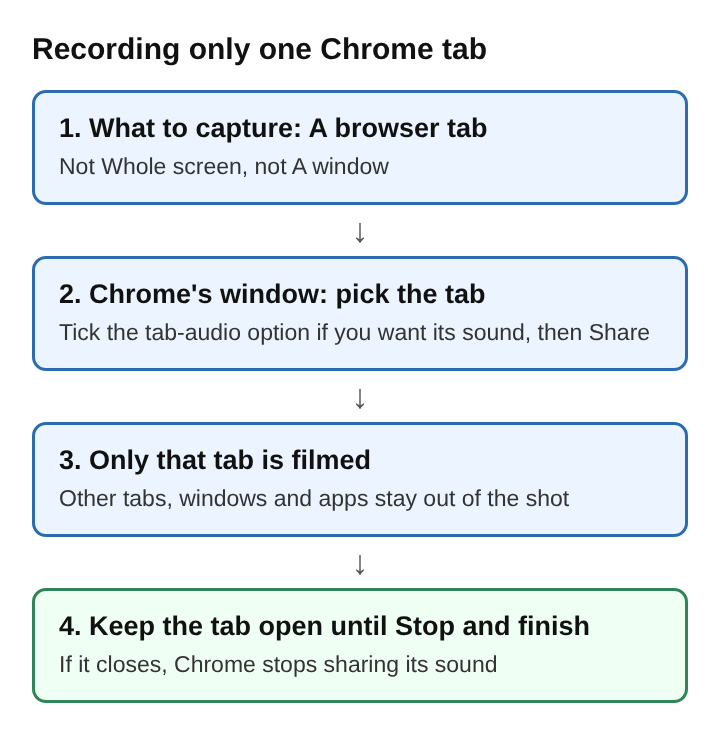
While you record, you can move to other tabs and other programs. The file keeps showing the shared tab, so reading a note or answering a message does not end up in the video.
Getting the tab's sound into the file
A tab gives you two things: its picture and, if you ask for it, its sound. The sound only comes when you tick the tab-audio option in Chrome's sharing window. Miss the box and the video plays back silent, even though the page was playing sound the whole time.
The other choices are stricter. When you share a window, Chrome does not hand over its sound at all. On a Mac, a whole-screen share carries no sound either. And sound from other programs on your computer cannot be recorded this way, so if a clip lives in a desktop player, play it in a Chrome tab and share that tab instead.
Your own voice takes a different route. It comes from the microphones ticked in the Microphone tile and is mixed into the same MP4 as the tab. So a one-tab recording can hold the page, the page's sound and your voice together.
A call is a special case. If the tab you film is a video call, its voices come through the Call audio tile, where you press Pick the call tab, choose the tab, tick Share tab audio and press Share. Tick the tab's sound in only one of the two places. If it is ticked both when filming the call tab and in Call audio, the other voices go into the file twice.
A worked example: a web app demo with private tabs open
Say you are recording a five-minute demo of a booking page for a client. You have six tabs open: the booking page, your email, a chat app, a bank statement, a spreadsheet of client notes and a news site. Only the first should appear.
- You type "Booking demo for Dana" into Name this recording, so the folder and the file are easy to find later.
- Under What to capture, you choose A browser tab and pick the booking page in Chrome's list. The page plays a short welcome sound, so you tick the tab-audio option, then press Share.
- You tick your headset's microphone in the Microphone tile, since you will be talking the client through it.
- You record a 30-second practice run, press Stop and finish, and play it back. Your voice and the welcome sound are both there, and the picture shows only the booking page.
- You start the real recording. Halfway through, the chat app pings. You switch to it, read the message and switch back. The file never leaves the booking page.
- When you reach the payment form, you press M so the client can jump to that part. Then you press Stop and finish.
The folder holds Booking demo for Dana.mp4. The email, the chat, the bank statement and the notes never appear in it, because they were never shared.
Mistakes that let other things into a recording
Most surprises in a one-tab recording come from a few small slips:
- Picking A window instead of A browser tab. A window follows whichever tab you show in it. Switch tabs to check a message and the message is in the video.
- Leaving the tab-audio box unticked. The picture looks right, but the page's sound is missing. A short practice run catches this before the real take.
- Closing the shared tab. Leave it open for the whole recording. If it closes, Chrome stops sharing its sound from that moment.
- Private things inside the tab itself. Sharing one tab keeps other tabs out, but anything shown on that page is filmed. Sign out of accounts you do not want seen, or close side panels, before you start.
- The webcam left on. A switch turns the webcam on or off. If you only want the page, switch it off.
For a recording that comes back silent, there is a fuller checklist in why a screen recording has no sound, and for talking over a page as you click through it, how to record a voiceover over your screen in Chrome.
Frequently asked questions
Can you record one tab while using other tabs?
Yes. Once a single tab is shared, you can switch to other tabs and programs, and the recording keeps showing the shared tab only.
Why does a recording of one tab have no sound?
Usually the tab-audio option was left unticked in Chrome's sharing window. Pick the tab again in a new recording and tick that box before pressing Share.
Does recording one tab include your microphone?
It does when a microphone is ticked in the Microphone tile. Your voice is mixed into the same MP4 as the tab's picture and sound.
Is a recording of one tab uploaded anywhere?
No. The MP4 is written straight to the folder you picked on your own computer. A file leaves the computer only if you convert it to another format or use an AI button, which sends the transcript.
What a one-tab recording keeps out of the file
A recording of one tab holds that page and nothing beside it: no other tabs, no other windows, no notices sliding in from the side. The page's sound is added only when the tab-audio option is ticked, and your voice comes from the microphone. What it cannot keep out is whatever the page itself shows, so the last check before pressing record is the shared page itself. Look at it the way the person watching will, and close anything on it that should stay private.
Cheap Recorder
Screen recording that is cheap and easy. Visit cheaprecorder.com