To record a lecture with a transcript, you need three things running at once: the slides on screen, your voice on a microphone, and speech recognition turning that voice into timed lines while you talk. In Google Chrome on a Mac, Windows or Linux computer, Cheap Recorder does all three in one tab, saving the video and the transcript side by side in a folder on your own computer. The work that decides whether the recording is any good happens in the ten minutes before the class starts.
Why a lecture is worth keeping as text
A lecture happens once. Wikipedia's page on lecture recording describes it as recording and archiving the content of a lecture, conference or seminar, and notes that it is widely used in universities in the UK and Australia; 71% of institutions answering a 2016 UCISA survey said they had it. The same page names the usual parts: a small clip-on lavalier microphone for the speaker's voice, and the slide show captured alongside it.
Video alone is slow to search. A fifty-minute file has to be scrubbed to find the two minutes on one idea. A transcript with a time on every line can be searched for a word, skimmed in a few minutes, and turned into notes. Wikipedia's note-taking page points out that notes drawn from a passing source such as a lecture may be the only record of it, and that good notes are selective and reorganize the ideas. A timed transcript gives you the full record first, so the selecting can happen later and calmly.
What to set up before you record a lecture with a transcript
Do this before anyone is waiting on you. Each choice is fixed once the recording starts.
- The folder. Under Where to save, press Choose folder…, pick a folder for the course and allow Chrome to edit files in it. Every recording gets a folder of its own inside it.
- The name. Type it into Name this recording. The folder is named with that name, the date and the time the recording began, so a number at the front keeps a term's lectures in order.
- The live transcript. Under Options, Live transcript is ticked by default. Leave it ticked and choose the language you teach in from the menu beside it, one of 25. The language is set when the recording begins, and Chrome listens for one language per recording.
- The connection. The transcript uses Chrome's own speech recognition, so it needs an internet connection, and while it is on Chrome sends the microphone audio to Google to turn it into text.
That last point is the one people miss. A transcript cannot be added to a recording afterwards. If Live transcript was off when you pressed start, that lecture has video and sound but no text, and nothing later will change that.
Picking the slides tab and the microphone
Under What to capture, the choices are Whole screen, A window or A browser tab. For a slide lecture, open the slides in their own Chrome tab and pick A browser tab. Only that tab ends up in the file, so email, chat windows and other tabs stay out of shot. If the slides play a video with sound and Chrome offers to share the tab's audio, that sound goes into the recording too.
The Microphone box names the microphone the recorder found. If that is the laptop's built-in one and you have a clip-on or USB microphone, open Change or add microphones, tick the one you want and press Rescan if you plugged it in a moment ago. The transcript can only write down what the microphone hears clearly, so a microphone close to your mouth matters more for the text than for the video.
Then record thirty seconds, stop, and play it back. That short trial catches a wrong microphone or a muted tab before it costs you a whole class.
A worked example: one fifty-minute lecture
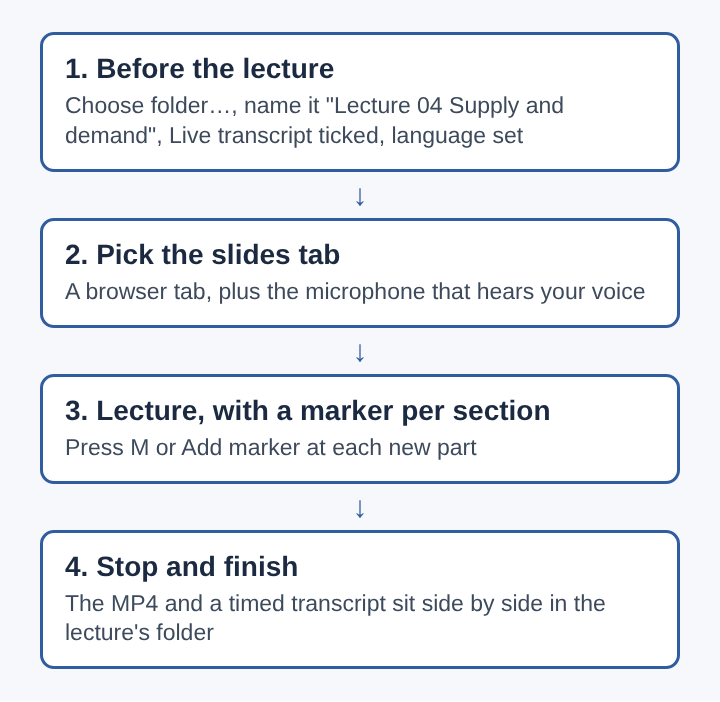
Say you teach an economics class and today is the fourth lecture, on supply and demand, from a slide deck with four parts.
- Before class, choose the course folder, type Lecture 04 Supply and demand into Name this recording, check that Live transcript is ticked with English chosen, and pick the slides tab and your clip-on microphone.
- Run the thirty-second trial. Play it back and check you can hear yourself.
- Press Start recording as the class settles. The top bar shows a timer and the megabytes written so far, so you can see the file growing.
- Each time you move to a new part (demand, supply, the point where they meet, and taxes), press M or Add marker. A short note confirms the time.
- When the class ends, press Stop and finish.
One catch on step 4: with the default single MP4, the marker notes show on screen while you record but are not written to a file. They are saved as a markers list and a chapters file only when Also save every source separately is ticked under Options before you start. If you keep the single file, jot the four times on paper as the notes appear.
For a long class, set your computer's display to stay on. The recorder asks Chrome to keep the screen awake while it records, but Chrome cannot always do that.
What lands in the lecture's folder
After Stop and finish, the course folder has a new folder in it named Lecture 04 Supply and demand - 2026-11-03 09.00, with the date and time the recording began. Inside are two files: Lecture 04 Supply and demand.mp4, the slides and your voice, and Lecture 04 Supply and demand - transcript.txt, every line with the time it was said, counted from the start of the recording.
The recording's card on the page plays the lecture with the captions switched on. Two buttons sit under it: Captions .srt downloads a caption file, and Transcript downloads the text with its formatting as a .md file. Both appear only when the transcript caught some speech. If they are missing, the transcript was off or the microphone heard nothing it could turn into words.
Turning the timed lines into notes and captions
Each line is labelled with the loudest sound source, usually the microphone's name. For a lecture with questions from the room, type real names into the Speaker boxes above the transcript and press Save captions; the transcript is written again with each line starting with the name.
For notes, open the transcript and work through it with your four marker times beside you. Each part of the lecture now has a start and an end in the text. Pull out the definitions, the examples you gave aloud and the questions students asked, and leave the rest. The full transcript stays in the folder if anyone needs the exact words.
For captions, the text on the preview is not drawn into the video, so the MP4 stays clean. The SRT file is added where the video is published, such as a course page, YouTube or a video editor. Read it first and fix any word the recognition got wrong: names, formulas and technical terms are the usual misses. Chrome gives a time per line rather than per word, so a caption can appear a moment early or late.
Frequently asked questions
Can a transcript be added to a lecture recorded without one?
Not with this method. The transcript is made live from the microphone while you record, so a recording made with the live transcript off has no text, and none can be made for it afterwards.
Does the lecture's sound leave the computer?
The video and transcript are saved to your own folder and not uploaded. While the live transcript is on, Chrome sends the microphone audio to Google to turn it into text; unticking it before you start keeps the sound on the computer.
Which language should the transcript be set to?
The one you teach in. It is chosen before you press start, and Chrome listens for one language per recording, so a lecture that switches language part way will only transcribe well in the one chosen.
Why do the captions run slightly ahead of or behind the voice?
The speech recognition reports a time for each line, not each word. A long line starts at one time and holds until the next, so a caption can sit a moment off the words it shows.
What a lecture transcript is good for
A timed transcript turns a lecture from something you sit through again into something you can search and quote. A student who missed the class reads the section they need. A lecturer finds the five minutes where an example landed and reuses it next term. Notes stop being a race against the speaker: the full record is there, and the work becomes choosing what matters. The quality of that record is set before the lecture starts, by a close microphone, the right language and the transcript switched on, and after it, by reading the text once and fixing the words that the recognition got wrong.
Cheap Recorder
Screen recording that is cheap and easy. Visit cheaprecorder.com