To choose which microphone a recording uses, open the list of microphones, tick the one closest to your mouth, untick the rest, and prove the choice with a short trial before the real recording. That sounds obvious until you count. A laptop has a microphone in its lid. A webcam usually carries one too. So does many a monitor, and so does any headset plugged in or paired. Four microphones on one desk is common, and the one a recorder picks first is often not the one you meant.
These steps use Cheap Recorder, a screen recorder that runs in Google Chrome and records the screen, one or more microphones, the webcam and the other side of a call into one MP4. Its Microphone tile is where the choice is made.
Why one desk can hold four microphones
A microphone is a transducer: a part that turns sound into an electrical signal, as Wikipedia's page on the microphone puts it. Makers add one to almost anything that might take part in a call, because a device that can hear is a device that can be used for video chat on its own.
A headset is the clearest case. Wikipedia describes a headset as a combination of headphone and microphone, built so you can speak and listen while your hands stay on the keyboard. Plug one in and the computer gains a microphone, even if you only wanted to listen through it.
Each of these shows up to Chrome as a separate input with its own name. The browser does not know which one sits near your mouth. A webcam on top of a monitor two feet away and a headset boom an inch from your lips are equal in its eyes, so the choice has to come from you.
Distance and direction decide how you sound
The microphone closest to your mouth almost always gives the clearest voice, because your voice is loud there and the room is quiet by comparison. A laptop microphone a metre away hears the fan, the keyboard and the echo off the walls nearly as loudly as it hears you.
Direction matters too. Wikipedia's page explains that an omnidirectional microphone's response is ideally a sphere, so it hears every direction about equally. Directional microphones favour the front. They also have a quirk worth knowing: put one a few centimetres from the source and the bass grows, an effect called the proximity effect. A little of it makes a voice sound full; too much makes it boomy, so a hand's width from the mouth is a safer start than touching distance.
Built-in microphones in laptops and webcams are made to hear a room. A headset boom or a desk microphone pointed at you is made to hear one person. For a recording of your own voice, the second kind wins nearly every time.
Steps to choose which microphone a recording uses
In the recorder, the Microphone tile names the microphone it found. From there:
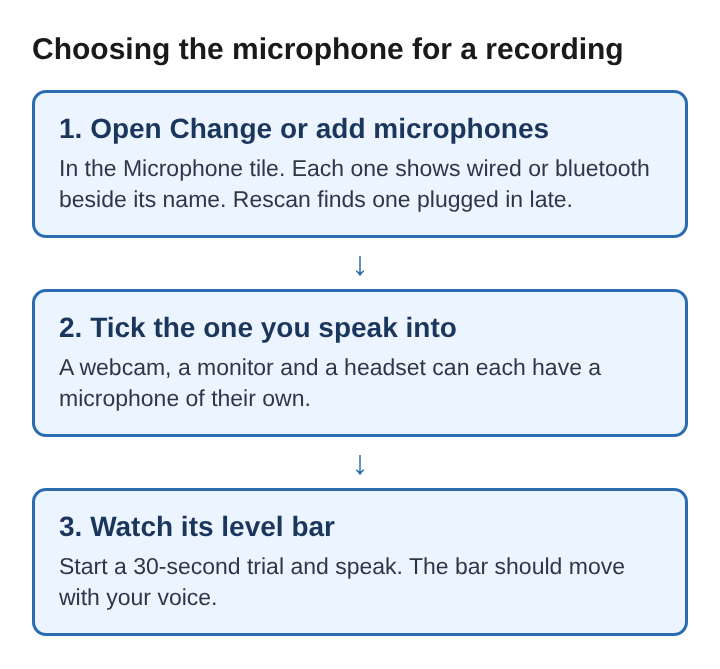
- Open Change or add microphones. Every microphone Chrome can see is listed, with wired or bluetooth beside its name.
- If one you just plugged in is missing, press Rescan.
- Tick the microphone you will speak into. Untick the others unless each one belongs to a different person.
- Press Start recording for a short trial and speak. Each ticked microphone has a level bar that moves with its sound.
- Stop, play the trial back in the player on the page, and listen.
The recorder remembers the choice in that browser, so the next session starts with the same microphone ticked. If you move between a desk with a headset and a sofa with only the laptop, check the tick each time, because the remembered one may not be plugged in.
A trial of about thirty seconds is the quickest check there is. It finds a wrong microphone far sooner than an hour-long recording played back afterwards. To hear the microphone on its own, switch the webcam off and pick no screen: the recorder then saves an M4A sound file and nothing else.
What the Microphone tile is telling you
The tile's line of text changes with what Chrome can and cannot do. Three messages cover most trouble:
- allow the microphone to record your voice: the page has no permission yet. Press Allow microphone and camera, or if it was refused before, allow it again in Chrome's site settings for the page and reload.
- no microphone found: Chrome cannot see one. Plug it in and press Rescan.
- none selected: every box is unticked, so the recording would have no voice at all.
If the right microphone is ticked but its level bar stays still while you speak, the fault is outside the browser. Check the mute switch on the microphone or headset cable, then the computer's own sound settings. During a recording, a microphone name followed by dropped out means it disconnected, most often a loose USB cable or a Bluetooth link, and its sound ends at that point.
For a full checklist when a finished recording turns out silent, see why a screen recording has no sound.
Wired, USB or Bluetooth
The wired or bluetooth label beside each name is there for a reason. Wired and USB microphones are the steadier pick for recording. A Bluetooth headset is fine for listening, but on a Mac, using it as a microphone switches the headset into a low-quality mode, and your voice comes out thin. The recorder shows Bluetooth microphone selected as a warning, not a fault, so the recording still works.
The common fix is a split: keep the Bluetooth headset on your ears for listening, and tick a wired or USB microphone for your voice. On a call, the headset also stops the other voices from coming out of the speakers and back into the microphone; how to stop an echo when recording a video call covers that in detail.
One more setting sits near the choice. Under Options, Record the microphone untouched turns off the echo, noise and volume correction. For calls, leave it unticked so that correction keeps working.
A worked example: a desk with three microphones
Say you are about to record a ten-minute walkthrough of a spreadsheet. On the desk are a laptop, a webcam clipped to an external monitor, and a USB headset with a boom microphone.
- You open Change or add microphones and see three names: the laptop's built-in microphone, the webcam's, and the headset's, each marked wired.
- The laptop's own microphone is ticked, because it was the only one present last time. You untick it and tick the headset.
- You press Start recording and read the first sentence of your script. The headset's bar jumps with each word.
- Playback sounds close and clear, with no fan noise. You stop the trial and start the real take.
Had you left the laptop microphone ticked, the recording would still have had sound. It would simply have been the sound of a room with you somewhere in it, which is the quiet failure a trial catches. If you later want a second person on their own microphone, recording two microphones at once uses the same list with two boxes ticked.
Frequently asked questions
Why does a recording use the wrong microphone?
Chrome sees every microphone as an equal input, and a recorder starts with whichever one was chosen last or found first. A webcam, monitor or headset can each add one, so the one ticked may not be the one you speak into.
Can a recording use more than one microphone?
Yes. Ticking several in the list records them all, each with its own level bar. Tick only one for a single speaker, since extra microphones mostly add room noise.
Is a Bluetooth headset a good recording microphone?
On a Mac it switches to a low-quality mode when used as a microphone, so the voice sounds thin. Use the headset for listening and a wired or USB microphone for speaking.
How do you check a microphone before a long recording?
Record about thirty seconds, watch the level bar move as you speak, and play it back. A trial catches a wrong or muted microphone in moments instead of after the whole session.
Picking a recording microphone comes down to distance
Every device on a desk may bring its own microphone, and none of them knows where your mouth is. The best choice is usually the closest one that is wired or USB, pointed at you from about a hand's width away. Tick that one, untick the rest, and let a thirty-second trial and a moving level bar confirm it before anything important is said.
Cheap Recorder
Screen recording that is cheap and easy. Visit cheaprecorder.com